Turn your Android flashlight on or off quickly
You can control the flashlight from the lock screen or from the Quick Settings panel. The fastest option depends on whether your phone is locked. Both methods use the Flashlight control, also called a torch on some Android phones.
On the phone shown here, the lock screen has a flashlight button at the bottom. Once the phone is unlocked, the Flashlight tile in Quick Settings gives you another easy way to switch the light on and off. You can also add the tile if it is missing.
Video Tutorial
Use the flashlight from the lock screen
The lock screen method is useful when you need light but do not want to unlock your phone first. Look along the bottom of the lock screen for a button with a small flashlight icon.
- Press the power button to wake your Android phone and show the lock screen.
- Find the flashlight icon near the bottom of the screen.
- Press and hold the flashlight button to turn the flashlight on.
- Press and hold the same button again to turn it off.
This control may not appear on every Android lock screen. Its position and availability can vary by phone and lock screen setup. If you do not see it, unlock the phone and use Quick Settings instead.
Turn on the flashlight in Quick Settings
Quick Settings is the standard place to find common Android controls. You can open it from almost anywhere after unlocking your phone.
- Unlock your Android phone.
- Swipe down from the top center of the screen.
- Look for the Flashlight tile.
- Select Flashlight to turn the light on.
- Select Flashlight again to turn it off.
The tile changes state when the flashlight is active, so you can quickly check if the light is still on before putting your phone away. Turning it off when you are finished also helps avoid unnecessary battery drain.
Find the Flashlight tile if you do not see it
Your first Quick Settings view may only show a few controls. Open the expanded panel before assuming that Flashlight is missing.
- Swipe down from the top center of the screen to open Quick Settings.
- Swipe down again to open the larger list of controls.
- Swipe right or left through the available options and look for Flashlight.
If the tile appears on another page, select it there whenever you need it. You can move it into a more convenient position so it appears sooner the next time you open Quick Settings.
Add Flashlight to Quick Settings
If Flashlight does not appear in the expanded list, add it through the Quick Settings editing controls. In the demonstrated layout, the edit button is a small pencil icon.
- Open the expanded Quick Settings panel by swiping down twice.
- Select the pencil icon to edit the available tiles.
- Scroll down through the list and look under Utilities for Flashlight.
- Select the plus symbol next to Flashlight to add it.
- Scroll back up to confirm that the Flashlight tile has been added.
After adding it, Flashlight will be available from Quick Settings. The exact editing layout can differ between Samsung Galaxy, Google Pixel, Motorola, OnePlus, and other Android phones, but the goal is the same: add the Flashlight control to your active Quick Settings tiles.
Move Flashlight where you can reach it faster
Adding the tile is helpful, but placing it near the top is even better. That way, it can appear as soon as you swipe down instead of requiring a second swipe or a trip to another page.
- Open the Quick Settings editing screen with the pencil icon.
- Press and hold the Flashlight tile.
- Drag it toward the top of the active tile list.
- Release it in the position you want.
- Leave the edit screen and open Quick Settings again to check its new location.
Once Flashlight is near the top, you can usually turn the light on or off with just a swipe down and a tap.
Adjust flashlight brightness when the option is available
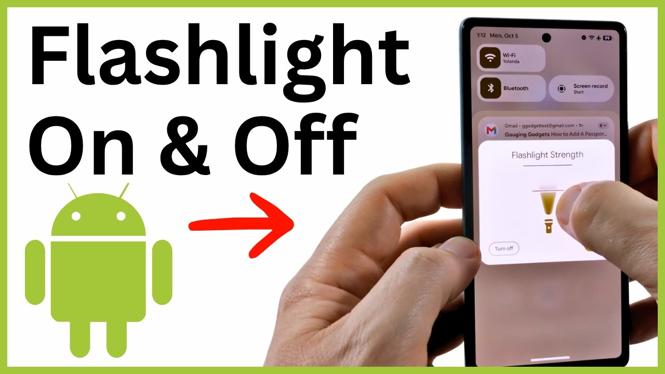
Some Android phones let you change the flashlight strength from the Flashlight control. Open the Flashlight menu in Quick Settings to see if a brightness adjustment is available. You can then choose a lighter or brighter setting based on what you need.
If you do not see a brightness control, your phone may only offer a standard on and off flashlight setting. You can still use the lock screen button or the Quick Settings tile to control it normally.
More Android Tips & Tutorials:
 Subscribe Now! 🙂

Discover more from Gauging Gadgets
Subscribe to get the latest posts sent to your email.