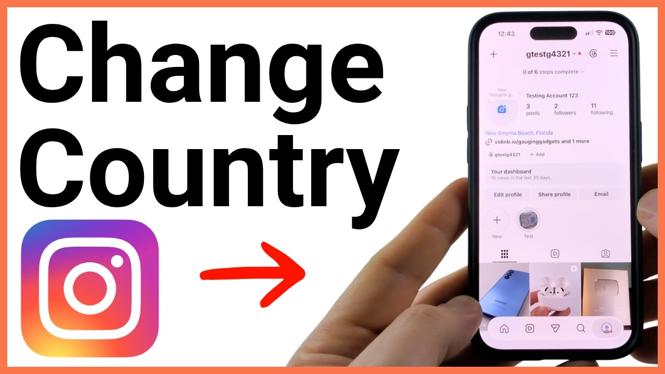
Change the Country Shown on Your Instagram Profile
Instagram shows a location on your profile through a Business account’s contact information. The setting demonstrated here changes the business address displayed on your profile, including its country. You will first switch to a professional account, choose Business, then add or edit the address.
If you already use a Business account and have contact information enabled, you can skip straight to Edit profile and update the location under Contact options.
Video Tutorial
Switch Your Instagram Account to a Business Account
A location will not appear on your profile until you use the Business account option and turn on contact information. Switching to a professional account is the first part of the process.
- Open Instagram and go to your profile.
- Select the three lines in the top-right corner.
- Scroll down to the Your insights and tools section.
- Select Account type and tools.
- Select Switch to professional account at the top.
- Review the introductory screens and select Next.
- If Instagram offers a profile category, you can choose one to show a label such as Digital Creator on your profile. Turn it off if you do not want to display a category, then select Switch to professional profile.
- Select Business, then select Next.
Choose Business here, not the other professional account type. The Business setup is what provides the business address used for the profile location.
Add the Address for the Country You Want to Show
Instagram will take you to Review your contact info during the Business account setup. This is where you set the location that can be displayed publicly on your profile.
- On the contact information review screen, select Business address.
- Enter the address details for the location you want shown. You can add a city, town, ZIP code, or street address.
- Make sure the address details match the country you want associated with your profile.
- Select Done after entering the address.
- Select Next to continue the setup.
- If you do not want to connect Facebook, select Skip at the bottom.
After setup finishes, Instagram returns you to your profile. Do not worry if the address is not visible right away. You still need to enable its display.
Turn On Contact Info So the Location Appears
Your business address can be saved without being visible to profile visitors. Turn on the contact info display setting to show it.
- From your Instagram profile, select Edit profile.
- Scroll down to Profile display.
- Turn on Contact info.
- Save the change, then return to your profile.
- Refresh the profile if the address does not appear immediately.
The address you entered should now show on your Instagram profile. This lets people see the location connected to your Business account.
Edit Your Country or Location Later
You do not need to repeat the professional account setup every time your address changes. Once your profile is a Business account, edit the saved location from your profile settings.
- Go to your profile and select Edit profile.
- Scroll down to Contact options.
- Edit the location or business address shown there.
- Save your changes and check your profile again.
Use an address you are comfortable showing publicly. With Contact info enabled, the business address is visible on your profile. If you only need to update the displayed country, review the address details carefully before saving so the profile location is accurate.
What This Setting Changes
This process updates the location displayed through your Instagram Business profile contact information. It is not a separate country selector shown in the steps above. The country shown comes from the business address you add or edit under Contact options.
If your address is correct but is missing from the profile, return to Edit profile, open Profile display, and confirm that Contact info is turned on.
More Instagram Tips & Tutorials:
 Subscribe Now! 🙂

Discover more from Gauging Gadgets
Subscribe to get the latest posts sent to your email.