How to Enable Auto Dubbing on Your YouTube Channel
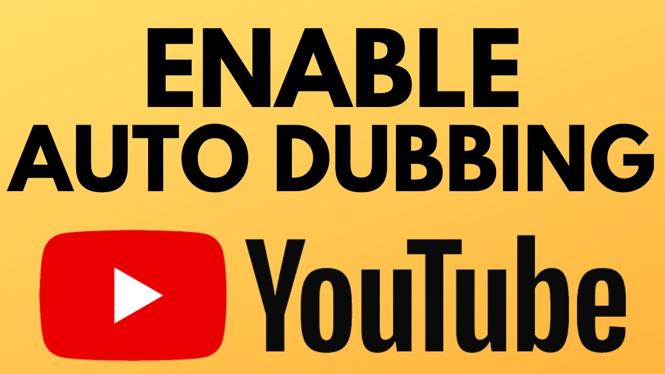
As a content creator on YouTube, reaching a global audience is essential for growing your channel and increasing engagement. One powerful tool at your disposal is YouTube’s auto dubbing feature, which allows you to translate your videos into multiple languages effortlessly. This tutorial will guide you through the process of enabling auto dubbing on your YouTube channel, ensuring your content is accessible to viewers worldwide. By the end of this guide, you’ll have the knowledge needed to expand your audience and enhance viewer engagement.
Video Tutorial
Why You Might Be Looking for This Tutorial
You might be interested in enabling auto dubbing on your YouTube channel for several reasons:
- Global Reach: You want your videos to be enjoyed by viewers who speak different languages, thereby increasing your channel’s reach.
- Engagement: Dubbing your videos can lead to higher viewer retention as audiences are more likely to engage with content in their native language.
- Professional Appeal: Offering content in multiple languages can enhance your professional image and make you stand out from other content creators.
- Improved Accessibility: Making your content accessible in different languages can help you connect with diverse demographics.
Steps to Enable Auto Dubbing on Your YouTube Channel
Follow these steps to enable auto dubbing on your YouTube channel:
-
Sign in to Your YouTube Account:
Begin by logging into your YouTube account. Ensure you have the necessary permissions for the channel you want to edit. -
Access YouTube Studio:
Click on your profile picture in the top right corner, then select “YouTube Studio” from the dropdown menu. -
Select ‘Settings’:
In the left-hand menu, scroll down and click on “Settings” to open the settings menu. -
Go to ‘Channel’:
Within the settings menu, click on “Channel,” and then navigate to the “Advanced settings” tab. -
Enable Auto Dubbing:
Look for the option labeled “Enable auto dubbing” or similar. Check the box next to this option to activate it. -
Select Target Languages:
Choose the languages you want to offer for dubbing. You may select multiple languages to broaden your audience reach. -
Save Changes:
After making your selections, be sure to save your changes to apply the new settings to your channel.
Customization Options and Tips
Once you have enabled auto dubbing, consider these customization options and tips for optimal results:
- Review Dubbing Quality: Check the quality of the generated audio to ensure it meets your standards. You can make manual adjustments if needed.
- Utilize Subtitles: In addition to dubbing, provide subtitles to accommodate viewers who may prefer reading along.
- Monitor Analytics: Keep track of viewer engagement and retention rates for different languages to see which demographics are responding best.
- Regularly Update Content: As you continue to create new videos, follow the same steps to enable auto dubbing for each one to maintain consistency in your offerings.
By following this tutorial, you can successfully enable auto dubbing on your YouTube channel and take a significant step toward growing your audience and enhancing engagement. Start embracing this powerful feature today to connect with viewers around the globe!
More YouTube Tips & Tutorials:
 Subscribe Now! 🙂

Discover more from Gauging Gadgets
Subscribe to get the latest posts sent to your email.