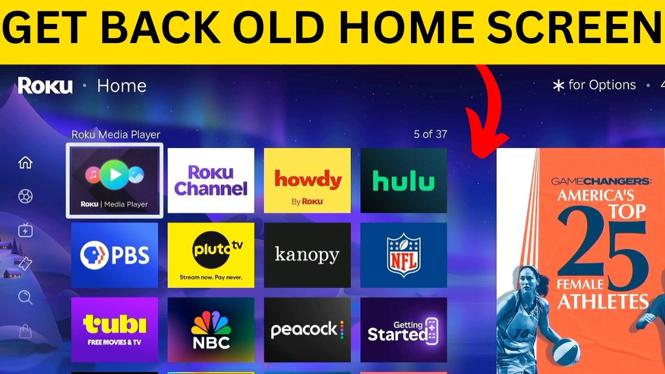
How to Switch Back to Old Roku Home Screen
In recent updates, Roku has introduced a new home screen interface that comes with recommendations and a “For You” section. While some users appreciate these features, many prefer the classic channel-only grid view that displays only their installed channels. If you’re looking to simplify your Roku home screen and restore the familiar interface, this blog post will guide you through the steps to switch back to the old Roku home screen.
Video Tutorial
Why You Might Be Looking for This Tutorial
Many Roku users find the new home screen cluttered with recommendations and suggestions that they did not ask for. This can make it challenging to navigate and find your preferred channels quickly. If you are among those who enjoy a more streamlined viewing experience with only your installed channels visible, this tutorial will help you regain that interface. With just a few simple steps, you can transform your Roku home screen back to its original, user-friendly style.
Steps to Switch Back to the Old Roku Home Screen
Step 1: Access Your Roku Device Settings
Turn on your Roku device and navigate to the home screen. Using your remote, scroll down and select the ‘Settings’ option.
Step 2: Select System Update
In the Settings menu, select ‘System’, and then choose ‘System Update’. This ensures that your device is running the latest version of the software, which is necessary for changes to take effect.
Step 3: Navigate to Home Screen Preferences
Go back to the ‘Settings’ menu, then select ‘Home Screen’. Here you will find options to customize your home screen display.
Step 4: Choose Classic View
Look for the option to switch back to ‘Classic View’ or ‘Channel-Only View’. Select this option to apply the changes.
Step 5: Confirm Your Selection
After selecting the classic view, you may be prompted to confirm your choice. Make sure to confirm to finalize the switch. Your Roku home screen should now reflect the changes.
Step 6: Restart Your Roku Device
For the changes to take full effect, it may help to restart your Roku device. Simply unplug it from the power source for a few seconds and then plug it back in.
Conclusion
Switching back to the old Roku home screen can greatly enhance your viewing experience by removing unnecessary distractions and allowing you to focus on your favorite channels. By following the steps outlined in this blog post, you can easily restore the classic channel-only grid view on your Roku device. Enjoy a cleaner interface and a simplified way to access your content!
More Roku Tips & Tutorials:
 Subscribe Now! 🙂

Discover more from Gauging Gadgets
Subscribe to get the latest posts sent to your email.