How To Import YouTube Video In CapCut
In the rapidly evolving landscape of video editing, knowing how to import and manipulate your existing content is essential for content creators. CapCut has emerged as a powerful video editing tool, allowing users to craft compelling video edits right from their iPhones, Android devices, or PCs. In this blog post, we will explore the steps required to import your own YouTube videos into CapCut.
Video Tutorial
Why You Might Be Looking For This Tutorial
As a content creator, you may find yourself wanting to repurpose your existing YouTube videos for various new projects like shorts, compilations, or updated uploads. Importing these videos into CapCut allows you to edit them seamlessly, add effects, and create fresh content without starting from scratch. Whether you’re a seasoned video editor or just starting out, this tutorial will guide you through the process, ensuring you can maximize your editing potential.
Steps to Import YouTube Video into CapCut
- Download Your YouTube Video: Before importing a video into CapCut, you need to download your YouTube video. There are various online services available that allow you to paste your video link and download the file in supported formats.
- Open CapCut: Launch the CapCut application on your device. If you do not have it installed, you can download it from the App Store or Google Play Store.
- Create a New Project: Click on ‘New Project’ on the home screen of CapCut. This will open a new editing workspace for you to start your project.
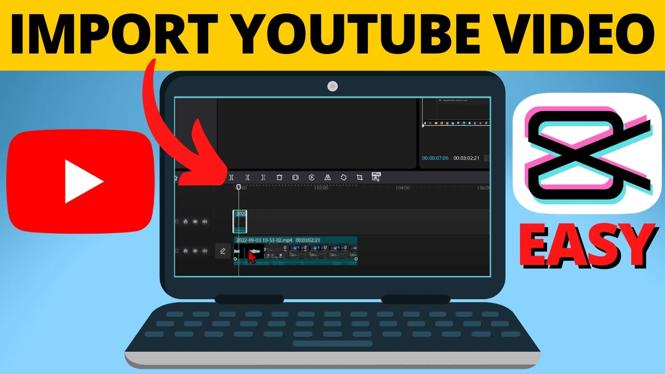
- Import Your Downloaded Video: Tap on the ‘Add’ button to import media. Navigate to your downloaded YouTube video file and select it for import. You will see a preview of your video within CapCut.
- Edit Your Video: Once your video is imported, you can start editing. Utilize the various tools available in CapCut to trim clips, add effects, and enhance your video. You can also insert additional footage or music as needed.
- Export Your Final Video: After finishing your edits, tap on the export button to save your new video. Choose your desired resolution and format, then export it to your device or directly upload it to your YouTube channel.
Conclusion
Learning how to import your YouTube videos into CapCut opens up a realm of editing possibilities. By following the simple steps outlined in this tutorial, you can easily create new content from your existing footage. Embrace the power of editing and continue to engage and grow your audience with creative video concepts.
More YouTube Tips & Tutorials:
 Subscribe Now! 🙂

Discover more from Gauging Gadgets
Subscribe to get the latest posts sent to your email.