Connect the flash drive to your Android phone
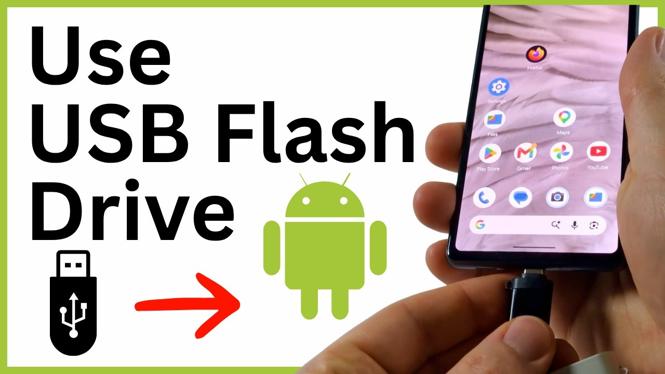
You can use a USB flash drive with an Android phone to move photos, videos, documents, and other files without a computer. The connection you need depends on the plug at the end of your flash drive.
First, check the connector on the flash drive. A large rectangular plug is a Type-A connector. Most newer Android phones use USB-C, so a Type-A flash drive needs a USB OTG adapter with a Type-A port on one side and a USB-C connector on the other. Plug the flash drive into the adapter, then plug the adapter into your phone.
If your flash drive already has a USB-C connector, you can plug it directly into the USB-C port on your Android phone. Once it is connected, use your phone’s file manager to view the drive and copy files in either direction.
Video Tutorial
Open the USB flash drive in the Files app
After connecting the drive, open the Files app on your Android phone. On Samsung phones, this app is called My Files. This is where you can browse both your phone storage and the connected flash drive.
- Open the Files app, or open My Files on a Samsung phone.
- Scroll down to the bottom of the app.
- Under All storage, find the USB icon and select Flash disk.
- Browse the folders and files stored on the USB flash drive.
The flash drive appears as a separate storage location from your phone’s internal storage. Opening Flash disk lets you check what is already on the drive before you copy anything to or from it.
Copy files from the flash drive to your phone
Copying files from the USB drive to your phone is useful when someone gives you a document, photo, or video on a flash drive. It also lets you access files from the drive in your Android apps after they are copied to internal storage.
- In Flash disk, locate the file you want to put on your phone.
- Select the three dots to the right of that file.
- Select Copy to.
- Select Internal storage.
- Choose the location in internal storage where you want to save the copy.
Give the phone time to finish the copy. The original file remains on the flash drive, and a separate copy is saved in your phone’s internal storage. This is helpful if you want to keep a backup on the drive while also working with the file from your phone.
Copy files from your Android phone to the flash drive
You can also use the same process in reverse. This is a simple way to back up phone files or free up space by moving copies of large photos and videos to a USB flash drive.
- In the Files or My Files app, navigate to the file on your Android phone.
- Select the image, video, document, or other file you want to copy.
- Select the three dots in the top-right corner.
- Select Copy to.
- Select Flash disk.
- Choose the folder where you want the file saved on the USB drive.
- Select Copy here.
Wait for the transfer to finish, then return to the USB drive in the file manager. Open Flash disk and check the folder you selected. The copied file should now appear on the flash drive.
Use the right storage location for each task
Internal storage refers to storage built into your Android phone. Flash disk refers to the connected USB flash drive. When you select Copy to, choosing the right one controls the direction of the transfer.
Choose Internal storage when you are copying a file off the USB drive and onto the phone. Choose Flash disk when you are backing up or moving a file from the phone to the USB drive.
Using a USB-C flash drive or a Type-A flash drive with a USB OTG adapter gives you a direct way to manage files between your Android phone and portable storage. You can browse the drive, copy the files you need, and verify the transfer from the same file manager app.
More Android Tips & Tutorials:
 Subscribe Now! 🙂

Discover more from Gauging Gadgets
Subscribe to get the latest posts sent to your email.