Separate Your Accounts in Accounts Center
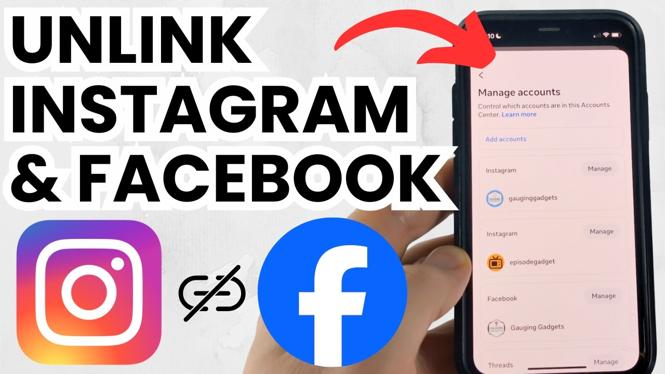
If your Instagram and Facebook profiles are connected, you can remove that link through Accounts Center. This separates the two accounts so you can manage them independently instead of relying on shared logins, cross-posting, or synced activity.
The important part is removing the connection between the profiles, not deleting either account. Your Instagram account stays active, and your Facebook account stays active. You are only changing how the two platforms work together.
Video Tutorial
How to Unlink Instagram From Facebook
- Open the Instagram or Facebook account that is currently linked to the other profile.
- Go to Accounts Center. This is where Meta keeps settings that apply across connected Facebook and Instagram accounts.
- Find the area that shows the connection between your Instagram account and Facebook profile.
- Select the linked account connection you want to remove.
- Choose the option to remove or disconnect the connection between Instagram and Facebook.
- Review the confirmation screen carefully, then confirm that you want to unlink the accounts.
Once confirmed, the Instagram and Facebook profiles should no longer be connected through Accounts Center. Check the account list again to make sure the other profile is no longer shown as linked.
What Changes After You Disconnect Them
Unlinking Instagram from Facebook gives you separate control over each platform. You will manage your Instagram profile as Instagram and your Facebook profile as Facebook, rather than treating them as one connected setup.
In particular, removing the connection can stop features that depend on the accounts being linked. That includes shared login behavior, cross-posting between the apps, and synced activity. If you previously had posts or account activity shared across both platforms, review your settings after unlinking to make sure they now match what you want.
This does not mean that old posts disappear from either platform. A Facebook post that was already published stays on Facebook, and an Instagram post that was already published stays on Instagram. Disconnecting the accounts affects the connection going forward.
Check for Other Shared Settings
Accounts Center can contain more than one shared setting. Removing the main Instagram and Facebook connection is the key step, but it is smart to check for anything else that was enabled while the accounts were linked.
- Look for cross-posting preferences if you do not want future Instagram posts shared to Facebook.
- Review login-related settings if you want to sign in to each account separately.
- Check synced activity options if you want each profile to have its own activity and recommendations.
- Confirm that the correct Instagram account and Facebook profile remain in Accounts Center.
You do not need to change settings you still want to use. The goal is simply to make sure no remaining shared option conflicts with your reason for separating the profiles.
If You Cannot Find the Disconnect Option
Start by confirming that you are signed in to the same Instagram or Facebook account that is actually linked. It is easy to open a different profile, especially if you manage multiple accounts.
Then return to Accounts Center and look for the account connection itself rather than a posting preference. Cross-posting controls can turn sharing on or off, but they may not remove the underlying link between the two profiles. To fully separate the accounts, you need the option that removes the linked connection.
If Accounts Center shows more than one Facebook or Instagram account, take a moment to identify the exact pair you want to disconnect. Removing the wrong connection can leave the original linked profiles unchanged.
Keep Your Profiles Independent
After unlinking, use each app normally and choose settings for that account only. If you later decide to share content or account features again, review the connection in Accounts Center before enabling anything. Keeping an eye on the linked accounts list is the simplest way to avoid reconnecting profiles by accident.
That is all you need to do to unlink Instagram from Facebook. Remove the connection in Accounts Center, confirm the change, and check any shared settings that you no longer want.
More Facebook Tips & Tutorials:
 Subscribe Now! 🙂

Discover more from Gauging Gadgets
Subscribe to get the latest posts sent to your email.