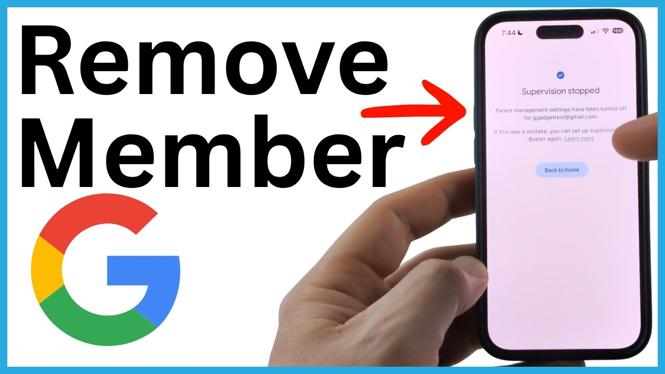
Stop Supervision for the Right Family Member
If you need to remove someone from Google Family Link, the setting shown in Family Link is Stop supervision. This ends your ability to supervise that person’s Google account through Family Link. It can be useful when a child is old enough to manage their own account or when your family settings need to change.
Before you confirm anything, make sure you have selected the correct family member. Family Link can show more than one person in your family group, and the supervision setting applies to the person currently selected.
Video Tutorial
How to Remove a Member From Google Family Link
You can begin in the Google Family Link app or by opening familylink.google.com. The steps use the same Family Link controls shown in the tutorial.
-
Open Google Family Link.
-
At the top left, select the family member whose supervision you want to remove. Take a moment to check the name before moving on.
-
Select Controls at the bottom of the screen.
-
Select Account settings.
-
Select Stop supervision.
-
Review the information Family Link displays. It explains what will change when supervision ends.
-
Scroll down and select I understand.
-
Select Stop supervision again to confirm the change.
After the confirmation goes through, Family Link displays Supervision stopped. The selected person is no longer supervised through your Google Family Link settings.
What Stopping Supervision Changes
Stopping supervision means you can no longer supervise activity on that person’s Google account in Family Link. Review the message on the confirmation screen carefully, since it describes the effect before you make the final choice.
This is the option to use when your goal is to end supervision for a child or another supervised family member. The tutorial specifically uses the Stop supervision setting, so focus on that option instead of changing unrelated controls in the app.
If you manage several people in Family Link, repeat the process only for the person you intend to change. Each person’s controls and account settings are opened separately after you select their name.
Check These Details Before You Confirm
The final confirmation is easy to miss, especially if you are moving through the account settings quickly. A quick review can help prevent changing supervision for the wrong person.
-
Confirm that the name at the top left belongs to the person you want to remove from supervision.
-
Use Controls, then Account settings, rather than changing another Family Link category.
-
Read the information displayed after selecting Stop supervision.
-
Select I understand only after you are ready to continue.
-
Wait for the Supervision stopped message so you know the request was completed.
If You Do Not See the Stop Supervision Option
First, return to the family member selector at the top left and choose the intended person again. Then open Controls and Account settings. The option in this guide is located there.
Also make sure you are working in Google Family Link, either in the Family Link app or at familylink.google.com. Once you reach the account settings for the selected person, look for Stop supervision. The confirmation flow includes the I understand selection and a final Stop supervision button.
That is all you need to do to remove supervision in Google Family Link. Select the correct person, open their account settings, and confirm that you understand the change before stopping supervision.
More Google Tips & Tutorials:
 Subscribe Now! 🙂

Discover more from Gauging Gadgets
Subscribe to get the latest posts sent to your email.