How to Delete Parental Controls on Android
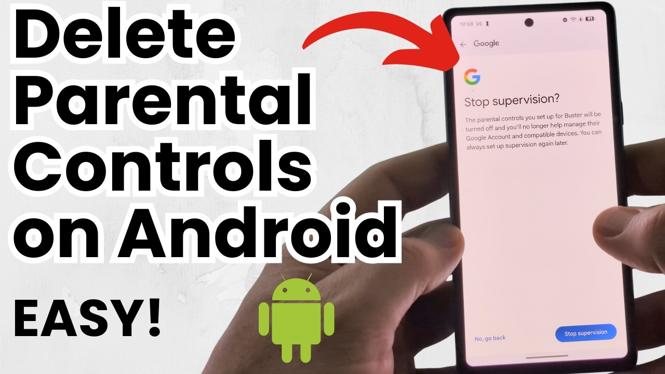
Are you finding yourself frustrated with the parental controls set on your Android device? Parental controls can sometimes limit the functionality of your phone or tablet, making it difficult to access certain apps and features. Thankfully, deleting these restrictions is a straightforward process, even for beginners. In this article, we will guide you through the steps to remove parental controls from various Android devices, including Google Pixel, Motorola, OnePlus, and more, ensuring that you can regain full control over your device.
Video Tutorial
Why You Might Be Looking for This Tutorial
There are various reasons why you may want to remove parental controls from your Android device. Perhaps the controls were put in place when the device was first purchased, and you are no longer a minor who needs supervision. Alternatively, you may have found that the parental controls were limiting your ability to use apps that are essential for your daily activities, such as messaging or banking applications. Whatever the reason, this tutorial will provide you with the knowledge you need to easily remove any restrictions.
Steps to Delete Parental Controls on Android
1. Access Settings
Begin by unlocking your Android device and navigating to the Settings app. This is typically represented by a gear icon on your home screen or in the app drawer.
2. Locate Digital Wellbeing & Parental Controls
Scroll down until you find the Digital Wellbeing & parental controls option. Tap on it to proceed.
3. Select Parental Controls
Inside the Digital Wellbeing menu, look for the Parental controls section. Click on it to access settings specific to parental controls.
4. Sign in to Your Account
If you used Google Family Link to set the parental controls, you will need to sign in to your Google account to make any changes. Enter your credentials as requested.
5. Disable or Delete Controls
Once you’re in the parental controls settings, you’ll see the current restrictions in place. From here, you can choose to either disable the controls entirely or delete them. Follow the prompts on the screen to complete this process.
6. Confirm Changes
After making your selections, ensure that you confirm any changes you have made. This will help to ensure that the parental controls are removed effectively.
7. Restart Your Device
Finally, it’s a good idea to restart your device to ensure that the changes take effect properly. Once your device powers back on, you should find that parental controls have been successfully deleted.
Conclusion
Removing parental controls from your Android device does not have to be a complicated process. By following these simple steps, you can regain full access to your apps and content in no time. Whether any previous restrictions were too limiting or you simply want to have complete control over your device again, this guide will help you achieve just that.
More Android Tips & Tutorials:
 Subscribe Now! 🙂

Discover more from Gauging Gadgets
Subscribe to get the latest posts sent to your email.