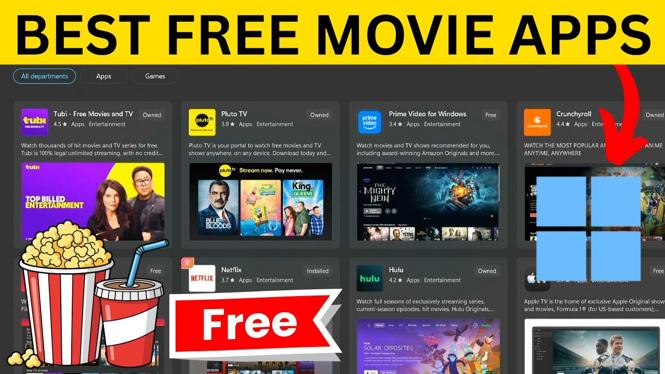
You can install several free movie apps directly from the Microsoft Store on a Windows 11 PC or laptop. The apps covered here offer free movies, TV shows, and, in some cases, live TV. Their catalogs and availability can vary by region.
Start in the Microsoft Store, then search for each app by name. Select the matching listing, choose Get or Install, and select Open when the installation finishes.
Video Tutorial
Open the Microsoft Store
- Select the Windows Start button.
- Type store.
- Select Microsoft Store under Best match.
- Use the search box at the top to find the app you want to install.
Installing from the Microsoft Store gives you one place to find, install, open, and later remove these apps. The button on an app listing may say Get or Install. Either option starts the download.
Tubi: Free Movies & TV
Search for Tubi and choose Tubi: Free Movies & TV from the results. Install it, then select Open.
Tubi has a large library of movies and TV shows that you can start browsing right away. You do not need an account just to pick a title and begin playing it. This makes it one of the simplest free movie apps to try first when you want something to watch without setting up another subscription.
Falsum
Search the Microsoft Store for Falsum, install it, and open the app. When it opens, select the version you want to use. The app also provides a Spanish version.
A useful part of Falsum is its collections. You can browse titles by genre and move through the available movie categories without much digging. If you already have a particular title in mind, use the search field at the top of the app.
Pluto TV for movies and live channels
Search for Pluto TV. Look for the app with the yellow icon, then install and open it.
For movies and TV shows you can choose on your own schedule, select On Demand at the top of Pluto TV. Pluto also includes free live TV channels. That means you can browse channels for news, sports, comedy, movies, and other programming alongside its on-demand catalog.
If you prefer the experience of channel surfing instead of choosing a movie each time, Pluto TV is the app in this list to check first.
Choose Plex for Windows
Search for Plex in the Microsoft Store. There are multiple Plex listings, so choose Plex for Windows. Do not select the media server or HTPC version for this purpose.
Install the app and open it when it is ready. Windows may ask if you want to allow the app to make changes during installation. Select Yes to continue. Plex may also ask for access to your network when you first open it, so allow access if you want to proceed with the setup shown in the app.
Inside Plex, you can browse its free live TV options or select Movies & Shows for on-demand content. Plex has a large catalog and is especially useful for international viewers because it offers a broad international selection.
Find free titles in Fandango Movies & Series
Fandango is often associated with buying or renting movies, but its app also includes movies you can stream for free. In the Store, search for Fandango Movies & Series, then install and open it.
After the app opens, select Stream Free in the top menu. This takes you to the free section, where you can browse trending and featured titles. Check this area rather than the rental or purchase sections when you only want free movies.
Watch Asian movies and dramas with iQIYI
Search for iQIYI in the Microsoft Store. Select the English app from the results, then install it.
iQIYI focuses on content from across Asia, including Korean dramas, movies, and TV shows. After installation, open the app and complete the setup screens by selecting Next and then Finish. You can then start browsing the available shows and movies.
This is a useful choice if the other apps do not have the international or Asian content you want to watch.
Remove an app you no longer use
You can uninstall any of these apps through the Microsoft Store when you no longer want it on your Windows 11 PC.
- In Microsoft Store, select Library from the left menu.
- Find the app in your library list.
- Select the three dots next to the app.
- Select Uninstall.
- Confirm the uninstall request.
After a moment, Windows removes the app so it no longer takes up storage space. You can install it again later from the Microsoft Store if you change your mind.
More tutorials
 Subscribe Now! 🙂
Discover more from Gauging Gadgets
Subscribe to get the latest posts sent to your email.