How to Add an Instagram Link to Your YouTube Channel
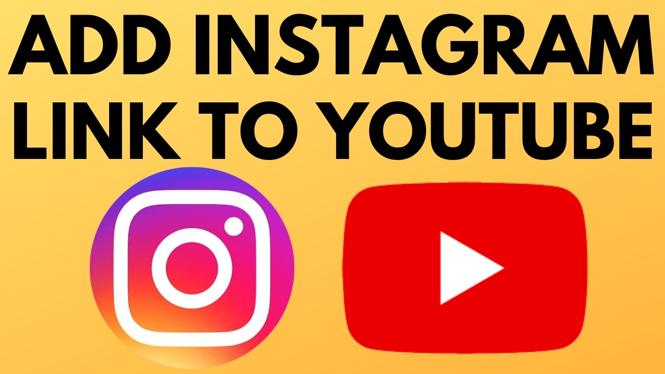
In today’s digital landscape, cross-promotion on social media platforms is crucial for growing your online presence. If you’re a content creator, connecting your Instagram account to your YouTube channel can help drive traffic and followers to your Instagram, allowing you to engage with your audience on multiple platforms. Adding an Instagram link to your YouTube channel is not only simple but also beneficial for maximizing your outreach.
Why You Might Be Looking for This Tutorial
Many YouTube content creators often seek to expand their audience by linking their social media profiles. By adding an Instagram link to your YouTube channel, you can create a seamless experience for your viewers, making it easy for them to discover your content on both platforms. This is especially helpful for brands, influencers, and creators looking to build a more robust online identity. Here’s why you should follow this tutorial:
- Enhance viewer engagement across social media.
- Increase followers and interactions on your Instagram account.
- Provide your audience with convenient access to your other content.
- Professionalize your YouTube channel with well-placed links.
Steps to Add an Instagram Link to Your YouTube Channel
- Log into Your YouTube Account: Start by hovering over your profile picture in the top right corner and click on “Your Channel.”
- Edit Your Channel: On your channel page, click on the “Customize Channel” button. This will take you to the YouTube Studio interface.
- Navigate to the About Section: In the YouTube Studio, look for the “Basic Info” tab on the left sidebar.
- Add Your Instagram Link: Scroll down to the “Links” section. Here, you can add a new link. Type ‘Instagram’ in the title field and paste your Instagram profile URL in the URL field.
- Save Changes: Make sure to save your changes to ensure the link is added to your channel.
- Check Your Channel: Visit your channel to confirm that the Instagram link appears in the “About” section, video descriptions, and potentially on your channel banner.
Video Tutorial
By following these steps, you can easily integrate your Instagram profile with your YouTube channel, providing your viewers with another avenue to connect with you. Take advantage of this feature to enhance your social media strategy and foster a community that engages with your content across platforms.
More Instagram Tips & Tutorials:
 Subscribe Now! 🙂

Discover more from Gauging Gadgets
Subscribe to get the latest posts sent to your email.