How to End Subscriptions on Your Xbox
In today’s digital age, managing subscriptions is crucial to avoid unforeseen charges and ensure you are getting value from the services you use. Xbox offers a variety of subscription services such as Xbox Game Pass and Game Pass Ultimate. However, with any subscription, there may come a time when you decide to end it. Whether you’re cutting back on expenses or simply no longer using a service, knowing how to cancel your Xbox subscriptions can save you money and frustration.
Video Tutorial
Why You Might Be Looking for This Tutorial
There are several reasons why you might want to cancel your Xbox subscriptions:
- You are trying to save money and want to cut unnecessary expenses.
- You feel that you are no longer utilizing the subscription services to their fullest potential.
- You want to switch to another gaming service that better fits your needs.
- You may have experienced issues with the service and wish to discontinue it.
Steps to End Subscriptions on Your Xbox
Follow these simple steps to cancel your Xbox subscriptions directly from your console:
- Turn on Your Xbox Console: Start your Xbox Series X, Series S, or Xbox One and sign in to your account.
- Navigate to Settings: From the Home screen, press the Xbox button to open the guide. Go to Profile & system, then select Settings.
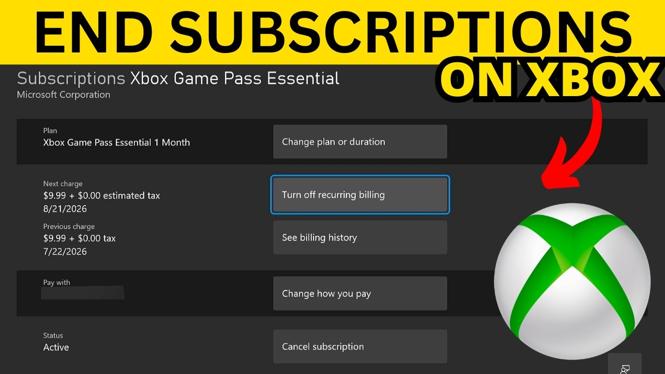
- Access Account Settings: In the Settings menu, select Account, then go to Subscriptions.
- Select the Subscription to Cancel: You will see a list of active subscriptions. Choose the one you wish to cancel, such as Game Pass or Game Pass Ultimate.
- Manage Your Subscription: Click on the selected subscription to view details. You will see options for managing your subscription.
- Cancel Subscription: Select Cancel subscription and follow any additional prompts to confirm your cancellation.
- Verify Cancellation: After cancellation, ensure that you receive a confirmation message, and check your account to verify that the subscription is no longer active.
By following these steps, you can easily manage and cancel your Xbox subscriptions, helping you take control of your gaming expenses.
More Xbox Series X Tips & Tutorials:
 Subscribe Now! 🙂

Discover more from Gauging Gadgets
Subscribe to get the latest posts sent to your email.