How to Change Your Instagram Email Address
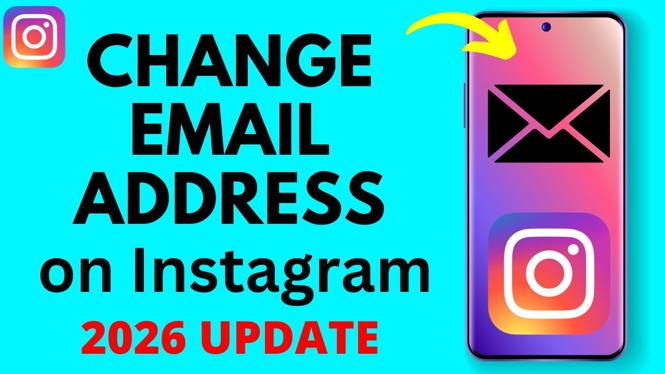
Changing your email address on Instagram is essential to keep your account secure and ensure you receive important notifications. With the evolving landscape of social media security, it’s good practice to review and update your account settings regularly. Whether you’ve changed your email provider, want to use a more secure email, or simply want to consolidate your online accounts, knowing how to change your Instagram email address is crucial. Fortunately, this tutorial will guide you through each step, ensuring you can update your details with ease, whether on an iPhone, Android, or Samsung device.
Video Tutorial
Why You Might Be Looking for This Tutorial
Many users find themselves needing to change their email address on Instagram for several reasons. Perhaps you’ve recently changed your personal or work email and want to keep everything organized. You might have also experienced issues accessing your account due to outdated or compromised email information. Additionally, you may want to enhance your security by linking a more secure email to your account. Regardless of the reason, knowing how to navigate this process is vital for maintaining control over your online presence.
Steps to Change Your Instagram Email Address
Step 1: Open Instagram
Launch the Instagram app on your iPhone, Android, or Samsung device and log in to your account if you haven’t already done so.
Step 2: Go to Your Profile
Tap on your profile picture in the bottom right corner of the screen to access your profile.
Step 3: Open Settings
In your profile, tap the three horizontal lines in the top right corner to open the menu. Select “Settings” from the list that appears.
Step 4: Select Account
In the Settings menu, locate and tap on “Account.” This will give you access to various account settings, including personal information.
Step 5: Edit Your Email Address
Under Account, select “Personal Information.” Here, you will see your current email address. Tap on it to edit, then enter your new email address.
Step 6: Confirm the Change
Once you’ve entered your new email address, Instagram may prompt you to verify it. Check your inbox for a verification email from Instagram and follow the instructions provided to confirm the change.
Step 7: Done!
Your email address has now been successfully updated! Ensure to check your Instagram settings periodically to keep your information current and secure.
Conclusion
Updating your email address on Instagram is a simple yet vital process to maintain control over your account. By following these easy steps, you can ensure that your personal information stays up-to-date and secure. For additional assistance, refer to the video tutorial provided above, which visually walks you through each step of the process. Remember, keeping your account secure is essential in today’s digital age.
More Instagram Tutorials:
 Subscribe Now! 🙂

Discover more from Gauging Gadgets
Subscribe to get the latest posts sent to your email.