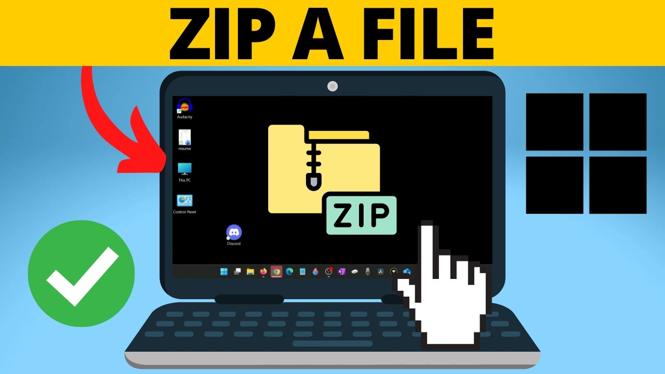
How to ZIP a File in Windows 11
In today’s digital world, managing files efficiently is crucial for both personal and professional use. Compressing files into ZIP format is one of the best ways to save space, share documents easily, and keep your files organized. Whether you are sharing large folders via email or simply want to declutter your desktop, knowing how to ZIP a file in Windows 11 can greatly simplify your workflow.
Why You Might Be Looking for This Tutorial
Many users seek to learn how to create ZIP files for various reasons. Perhaps you are trying to send a large number of files without exceeding email size limits, or maybe you want to keep your documents organized by grouping them into a single compressed folder. Learning how to ZIP files in Windows 11 allows you to:
- Reduce file sizes for easier sharing.
- Organize multiple files and folders into a single archive.
- Speed up the process of transferring files across your network.
- Avoid installing additional software since Windows 11 has built-in ZIP capabilities.
Steps to ZIP a File or Folder in Windows 11
- Locate the File or Folder: First, navigate to the file or folder you wish to compress using File Explorer.
- Select the File or Folder: Right-click on the file or folder. If you want to ZIP multiple files, hold down the ‘Ctrl’ key while selecting each file.
- Open the Context Menu: After selecting your items, right-click to open the context menu.
- Create a ZIP File: In the context menu, hover over the ‘Send to’ option. You will see a sub-menu appear; click on ‘Compressed (zipped) folder.’
- Name Your ZIP File: After the ZIP file is created, it will appear in the same directory. You can rename it by right-clicking on it and selecting ‘Rename.’
Video Tutorial
For those who prefer visual learning, watch this comprehensive video tutorial for step-by-step instructions on how to ZIP files in Windows 11:
By following these simple steps, you will be able to effectively compress files and folders on your Windows 11 device with ease. Use this handy skill to improve your file sharing and organization today!
More Windows 11 Tips & Tutorials:
 Subscribe Now! 🙂

Discover more from Gauging Gadgets
Subscribe to get the latest posts sent to your email.