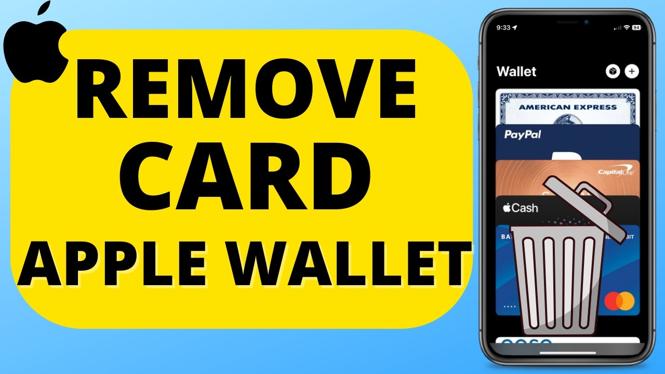
How to REMOVE Card from Apple Wallet
Managing your digital wallet has never been easier, especially with Apple Wallet, which holds your credit cards, debit cards, and payment methods in one convenient place. However, there may come a time when you need to remove a card from Apple Wallet. Whether it’s because you’ve decided to switch banks, you’ve received a new card to replace an old one, or you’re simply tidying up your digital payment options, learning how to delete a card from Apple Wallet is an essential skill for any iPhone user. This tutorial will guide you through the process step by step, ensuring you can easily manage your financial information.
Video Tutorial
Why You Might Be Looking for This Tutorial
There are various reasons why you may want to remove a card from your Apple Wallet:
- Switching Banks: If you’ve changed your primary bank or credit card, you’ll want to ensure your Apple Wallet accurately reflects your new payments.
- Expired Cards: Regularly checking and removing expired cards can help keep your digital wallet clean and up-to-date.
- Security: If you suspect fraudulent activity or you’ve lost a card, removing it from your wallet is a quick way to secure your information.
- Decluttering: Keeping your wallet updated with only the cards you use can help streamline your payment process.
Steps to Remove a Card from Apple Wallet
- Open Wallet App: Locate and tap on the Wallet app on your iPhone home screen.
- Select the Card: Browse through your saved cards and select the one you wish to remove.
- Access Card Details: Once you have selected the card, tap the three-dot icon or the “i” (information) button located at the bottom right corner of the card.
- Remove Card: Scroll down and tap on the “Remove Card” option. Confirm your decision when prompted.
- Check for Confirmation: You should receive a confirmation message that the card has been successfully removed from your Wallet.
By following these simple steps, you can effectively manage the cards in your Apple Wallet and ensure your financial information is always accurate and secure. Take a moment to review your cards regularly for a more organized digital payment experience.
More iPhone Tips & Tutorials:
 Subscribe Now! 🙂

Discover more from Gauging Gadgets
Subscribe to get the latest posts sent to your email.