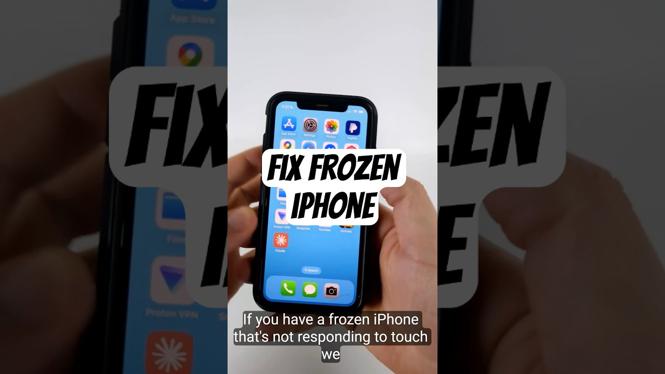
How to Fix Frozen or Unresponsive iPhone
Experiencing a frozen or unresponsive iPhone can be frustrating. Whether you’re in the middle of an important task or simply trying to access your favorite apps, having your device become unresponsive can interrupt your day. Fortunately, there are quick and effective methods to force restart your iPhone without losing any data. This tutorial will guide you through the necessary steps to get your device back to functioning normally.
Video Tutorial
Why You Might Be Looking for This Tutorial
There are several reasons why you might be searching for a solution to fix a frozen or unresponsive iPhone. Common situations include:
- Your iPhone screen has suddenly stopped responding due to a software glitch.
- You are unable to access important apps or data on your device.
- Your device freezes during an update, preventing you from completing the installation.
- You are unsure of how to perform a force restart and want to avoid costly repair services.
This guide provides you with simple instructions to resolve these issues quickly, ensuring that you can continue using your iPhone without major interruptions.
Steps to Fix a Frozen or Unresponsive iPhone
Regardless of the iPhone model, the process to force restart is quite similar. Below are the steps tailored to different iPhone versions:
For iPhone 8 and Later (including iPhone SE 2nd generation)
- Quickly press and release the Volume Up button.
- Quickly press and release the Volume Down button.
- Press and hold the Side button until you see the Apple logo.
For iPhone 7 and 7 Plus
- Press and hold both the Volume Down and the Side buttons simultaneously.
- Continue holding them until you see the Apple logo.
For iPhone 6s and Earlier
- Press and hold both the Home and the Top (or Side) buttons simultaneously.
- Release both buttons when you see the Apple logo.
Conclusion
Fixing a frozen or unresponsive iPhone doesn’t have to be complicated. By following the steps outlined in this tutorial, you can quickly force restart your device and return to your daily activities without losing any data. Keep this guide handy for future reference, and remember that understanding how to troubleshoot common tech issues can save you time and stress.
More iPhone Tutorials:
 Subscribe Now! 🙂

Discover more from Gauging Gadgets
Subscribe to get the latest posts sent to your email.