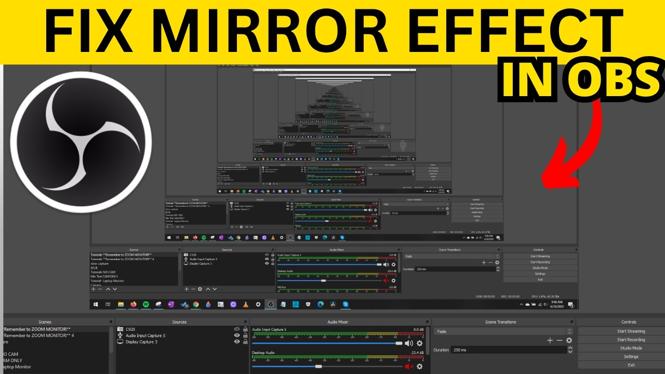
A mirror effect in OBS Studio can mean two different things. OBS may be capturing its own window, which creates a repeating screen-within-a-screen image. Or, one source, such as a webcam, image, display capture, or text source, may be flipped or upside down.
The fix depends on which result you see. First stop OBS from appearing in a screen capture. Then use the source Transform controls when only one item has the wrong orientation.
Video Tutorial
Stop OBS from recording its own window
If your recording or stream preview shows OBS repeated over and over, OBS is likely capturing the OBS window itself. This is common when you use a screen capture and OBS is visible on that screen. It is not a problem with your webcam or a broken recording.
OBS includes a setting that hides its own windows from screen captures. Once enabled, OBS will no longer appear in the captured screen, even while you are working in OBS.
- In OBS Studio, select Settings in the bottom-right corner.
- Select General.
- Enable Hide OBS windows from screen capture.
- Select OK to save the setting.
Your screen capture should no longer include the OBS interface. This is useful when you are recording or streaming and do not want viewers to see your OBS layout, scenes, or source list.
This setting fixes the repeating mirror-style effect caused by OBS filming itself. It does not change the direction of a webcam or other individual source. If a single source is backwards, mirrored, upside down, or rotated, use the Transform options instead.
Fix a mirrored or upside-down source
When only one item in your scene looks wrong, select that source and change its Transform settings. For example, a webcam may be mirrored horizontally, or an image may be flipped vertically. You can open the same Transform menu from the preview or from the Sources list.
- Find the source that has the incorrect orientation.
- Right-click the source in the OBS preview. You can also right-click the same source in Sources.
- Select Transform.
- Select Flip Horizontal if the source is mirrored from left to right.
- Select Transform again, then select Flip Vertical if the source is upside down.
Use one flip at a time and check the preview after each change. A horizontally flipped webcam will show text backwards and swap the left and right sides of the image. A vertically flipped source will appear upside down. Applying the matching flip returns it to the normal orientation.
Use Transform for rotated sources too
The Transform menu includes more options than the two flip commands. If a source has been rotated, open Transform for that source and use the available Transform options to return it to the orientation you need.
This works with more than webcams. You can correct video capture devices, display captures, images, and text sources from the same source menu. The change applies only to the selected source in that scene, so it will not affect your other sources.
If you have several scenes using similar sources, check each scene after making a change. A source can look correct in one scene while another source or scene still needs its own adjustment.
Check the result before you record
Look at the OBS preview after changing the settings. For a webcam, move your hand and confirm that the image behaves as expected. For text or an image with words, check that the lettering reads normally. Text is one of the quickest ways to spot a horizontal mirror effect.
Also confirm which issue you fixed. If the OBS interface no longer appears in your capture, the Hide OBS windows from screen capture setting solved the self-capture issue. If the camera, image, or text now faces the correct direction, the source Transform change solved the orientation issue.
These are separate fixes, and you may need both when a screen capture includes OBS and a source inside the scene is also flipped. Once the preview looks right, your recording or stream will show viewers the corrected image.
More OBS Studio Tutorials:
 Subscribe Now! 🙂

Discover more from Gauging Gadgets
Subscribe to get the latest posts sent to your email.