Stop Gemini From Opening on Your Samsung Phone
Gemini can open when you long-press the Side button, use a voice command, or access it from your lock screen. Disabling the Gemini app is one part of the process, but you should also change the assistant settings that can still trigger it.
The steps below switch the Side button back to the power menu, disable or uninstall Gemini where available, and limit Gemini access through its settings. You can also replace Gemini with Google Assistant, then turn Google Assistant off if you do not want either assistant active.
Video Tutorial
Change the Side Button Long Press
On some Samsung phones, holding the Side button opens Gemini instead of the usual power options. Change the long-press action first so you can use the button for the power menu again.
- Swipe up to open your app drawer, then open Settings.
- Scroll down and select Advanced features.
- Select Side button.
- Choose Long press.
- Select Power off menu.
Now, holding the Side button should show the power menu instead of Gemini.
Disable or Uninstall the Gemini App
Next, disable the Gemini app itself. Some Samsung phones may show an uninstall option, while others only let you disable the app.
- Open Settings and return to the main Settings page.
- Select Apps.
- Scroll to the G section and select Gemini.
- At the bottom of the app info page, select Uninstall if that option is available.
- If you do not see uninstall, select Disable.
- Confirm by selecting Disable app.
This prevents the Gemini app from running normally, but it does not automatically remove every Gemini-related trigger. Continue with the settings below.
Turn Off Gemini Voice, Screen, and Lock Screen Access
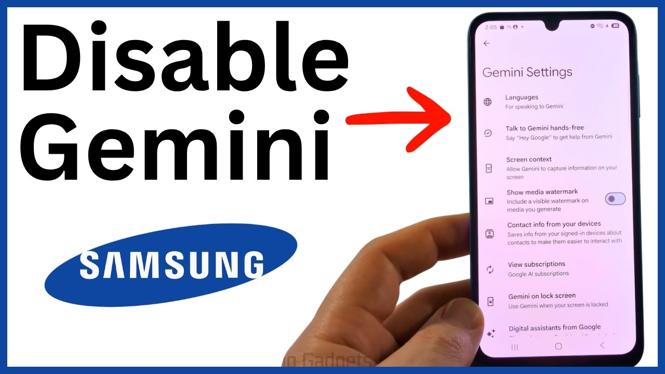
Samsung Settings includes Gemini controls that can remain enabled even after you disable the app. Search for Gemini so you can review the available options on your phone.
- Open Settings.
- Use the Settings search and search for Gemini.
- Under Other, select Gemini settings.
- Review the Gemini settings and choose the most limited option where one is available.
- Select Talk to Gemini hands free, then turn off Hey G.
- Turn off the option for using Gemini while driving if it is enabled.
- Select Screen context and turn off its toggles so Gemini cannot use what is on your screen.
- Open Gemini on your lock screen and turn off the available lock screen access options.
The exact list can differ slightly by phone and software version. The goal is to disable voice activation, screen context, lock screen access, and any other Gemini shortcut you do not want to use.
Switch the Default Digital Assistant
Set Google Assistant as the preferred assistant instead of Gemini. This stops Gemini from being the selected digital assistant on the phone.
- While still in Gemini settings, select Digital assistance from Google.
- Select Google Assistant.
- Select Switch to confirm the change.
You can leave Google Assistant enabled if you still want basic voice help for tasks on your phone. If you want no Google digital assistant at all, turn Google Assistant off next.
Turn Off Google Assistant Too
This final section is optional. Use it only if you do not want Google Assistant after removing Gemini.
- Go to your Home screen, then swipe up to open the app drawer.
- Open the Google app. It may be inside a folder named Google.
- Select your profile icon in the top-right corner.
- Select Settings.
- Select Google Assistant.
- Scroll down to General.
- Turn off Google Assistant and confirm your choice.
At this point, Gemini is disabled or uninstalled where your phone allows it, its common activation settings are turned off, and Google Assistant is also off if you completed the optional final steps.
More Samsung Phone Tips & Tutorials:
 Subscribe Now! 🙂

Discover more from Gauging Gadgets
Subscribe to get the latest posts sent to your email.