Remove Camera Permissions From Every App
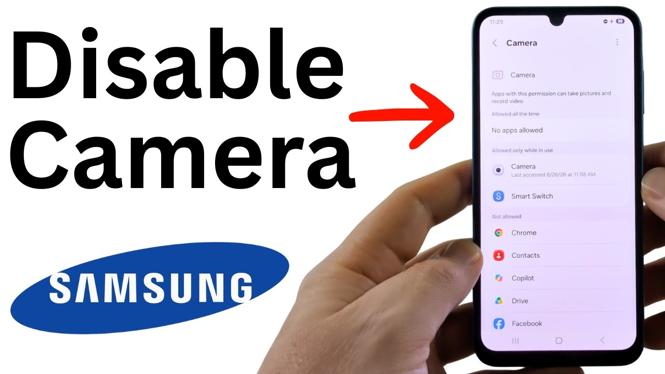
You can disable the camera on a Samsung phone by removing camera permission from every app that is currently allowed to use it. This includes Samsung’s Camera app and any social media or messaging apps that can open the camera. Once those permissions are removed, an app cannot access the camera unless you allow it again.
The setting you need is in the Samsung Permission manager. You do not need to install another app. Work through the apps listed under the allowed categories and change each one to Don’t allow.
Video Tutorial
What Disabling Camera Access Does
This method stops individual apps from using your phone’s camera. The key is to remove permission from all apps that have it. If even one app remains in the allowed list, that app can still use the camera when you open a camera feature inside it.
When you remove access from the Camera app, opening it will not bring up the camera view. Instead, it will ask you to change its settings so it can use the camera. Apps such as Facebook behave the same way when they try to open the camera. They will report that they do not have permission.
Samsung may show a warning that basic features will break when you remove permission. That warning is expected. Camera-related features cannot work while the app is blocked from accessing the camera.
Disable the Camera in Samsung Settings
- Open your Samsung phone’s Settings app. You can swipe up from the bottom of the screen to open your apps, then select Settings.
- Scroll down and select Security and privacy.
- Scroll to the bottom of the Security and privacy screen, then select More privacy settings.
- Scroll down a little and select Permission manager.
- Select Camera from the permission list.
- Check the apps shown under Allowed all the time and Allowed only while in use. These are the apps that can currently use your Samsung phone’s camera.
- Select an app from one of those allowed lists. Start with the Camera app if you want to stop the built-in camera app from working.
- Select Don’t allow.
- If Samsung displays a warning about basic features breaking, select Don’t allow anyway.
- Repeat the same process for every app listed under Allowed all the time or Allowed only while in use.
Do not stop after changing one app unless that is your goal. To fully disable camera use across your phone’s apps, move every app out of the allowed categories.
Test That the Camera Is Blocked
Return to your Home screen after you finish changing permissions. Open the Camera app. It should not open the camera normally, and it should prompt you to change settings to use the camera.
You can also test an app that normally has a camera option, such as Facebook. Try to open its camera feature. Since the app no longer has camera permission, it should show that it cannot use the camera.
If an app still opens the camera, return to Permission manager, select Camera, and check the allowed lists again. That app likely still has access, or another app used for the test still appears under an allowed category.
Allow an App to Use the Camera Again
You can reverse this at any time from the same permission screen. Go back to Settings, Security and privacy, More privacy settings, Permission manager, and then Camera.
Select the app you want to use again and change its camera permission from the blocked setting to an allowed setting. You only need to restore access to the specific app you want. For example, you can allow the Camera app again while keeping Facebook and other apps blocked.
This gives you direct control over which apps can use your Samsung phone’s camera. Check the Camera permission list whenever you want to review access or block another app.
More Samsung Phone Tips & Tutorials:
 Subscribe Now! 🙂

Discover more from Gauging Gadgets
Subscribe to get the latest posts sent to your email.