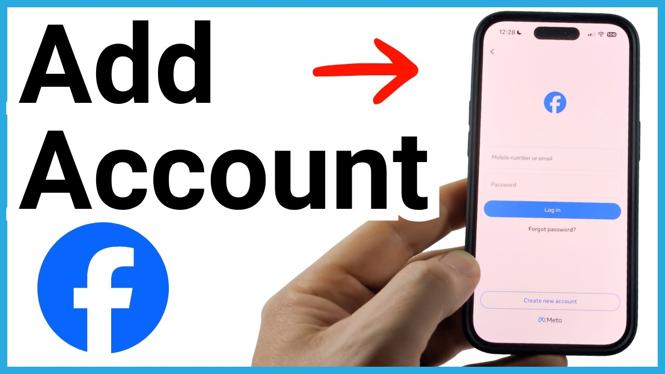
Add the second Facebook account from the logout screen
You can add another account on Facebook through the Facebook app’s logout screen. After you sign in to the second account once, Facebook shows the saved accounts when you log out. You can then select the account you want instead of entering its login details again each time.
The location of the Facebook menu can look different depending on the account and version of the app. On some accounts, your profile icon appears in the bottom navigation bar with Menu below it. On others, the menu button is the three horizontal lines beside the Facebook logo at the top. Both buttons open the same area you need.
Video Tutorial
How to add another account on Facebook
- Open the Facebook app while signed in to your current account.
- Open the Facebook menu. Select your profile icon in the bottom menu if it has Menu under it. If your app has three lines beside the Facebook logo at the top, select those lines instead.
- Scroll to the bottom of the menu.
- Select Log out.
- Confirm that you want to log out when Facebook asks.
- Look at the account selection screen. If your second account is not already listed, select Use another profile.
- Enter the login details for the Facebook account you want to add and complete the sign-in process.
Once the second account has been signed in, it will appear with your other saved Facebook accounts on the logout screen. This lets you keep the accounts available in the app rather than having to start from a blank sign-in screen each time.
Switch between your Facebook accounts
After adding the account, switching is quick. Open the menu from the account you are currently using, scroll to the bottom, and select Log out. Facebook displays the available accounts. Select the profile you want to use, and Facebook logs you into that account.
You may notice that the menu location changes after switching accounts. For example, one account may show the profile icon and Menu at the bottom, while another shows the three-line menu button near the Facebook logo. That is normal. Use whichever menu control is visible for the account currently open, then scroll down to Log out.
This process is useful when you have a personal Facebook account and a separate work account. You can move from one account to the other from the saved-account list instead of repeatedly entering usernames and passwords.
If you only see one account
If the account selection screen shows only your current account, the second account has not been added to the app yet. Select Use another profile and sign in with the second account. After that sign-in is complete, log out again to check the list. The additional account should then be available to select.
Make sure you use the correct login details for the account you intend to add. The account switcher only helps after Facebook has successfully signed you in to that profile. If you sign in to the same account again, you will still only have that one account available.
What logging out does in this process
Facebook uses Log out as the route to the saved-account chooser shown in this process. Logging out of the account currently on screen does not stop you from selecting another saved account right away. After you choose a listed account, Facebook opens that account.
When you need to switch back, repeat the same steps: open the menu, scroll down, choose Log out, and select the other account from the list. You do not need to hunt for a separate account-switching button. The logout screen is where the available Facebook accounts appear.
Quick account switching checklist
- Open the menu using the bottom profile icon or the three-line button at the top.
- Scroll to the bottom and select Log out.
- Select Use another profile if the account is not listed.
- Sign in to the additional Facebook account once.
- Use the account list after logging out whenever you want to switch.
With both accounts added, you can go between them in a few taps from the Facebook app’s logout screen.
More Facebook Tips & Tutorials:
 Subscribe Now! 🙂

Discover more from Gauging Gadgets
Subscribe to get the latest posts sent to your email.