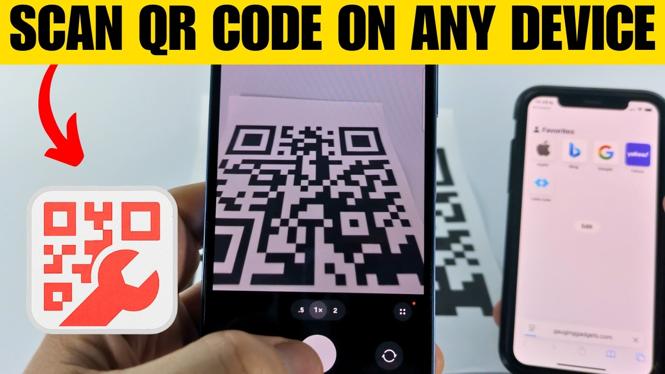
How to Scan QR Codes on ANY Device
In today’s digital age, QR codes have become increasingly prevalent, offering a quick and convenient way to access information, websites, and more with just a scan. Whether you are navigating a restaurant menu, downloading an app, or connecting to Wi-Fi, knowing how to scan QR codes on various devices is essential. This comprehensive guide will take you through the necessary steps to scan QR codes on any device you own, ensuring you never miss out on the benefits these codes provide.
Video Tutorial
Why You Might Be Looking for This Tutorial
Many individuals are turning to QR codes for their versatility and ease of use. Here are a few reasons why you may find yourself searching for a tutorial on scanning QR codes:
- Universal Access: With various devices in use today, users may need to scan QR codes on smartphones, tablets, laptops, and desktop computers. This tutorial caters to all platforms.
- Lack of Built-in Scanning Features: Some devices do not have a native QR code scanner, leading users to seek alternatives. This guide introduces QRCodeGadget, ensuring seamless scanning even on unsupported devices.
- Quick Information Access: Scanning QR codes is a rapidly growing method of accessing information. Learning how to do this effectively saves time and improves productivity.
Steps to Scan QR Codes on Various Devices
Follow these straightforward steps to scan QR codes using your device’s camera or the QRCodeGadget:
Scanning on iPhone
- Open your iPhone’s Camera app.
- Point the camera at the QR code until a notification appears.
- Tap the notification to access the linked information.
Scanning on Android
- Open your Android device’s camera app or QR code scanner (if available).
- Aim the camera at the QR code.
- Follow the prompt that appears to access the content.
Scanning on Samsung Galaxy
- Launch the Camera app or Smart View.
- Point your camera at the QR code.
- Tap the link that appears on your screen.
Scanning on Chromebook
- Open Chrome and search for QRCodeGadget.
- Upload the QR code image or access it through a URL.
- Click on ‘Scan’ to retrieve the information from the QR code.
Scanning on Windows PC
- Open a web browser and go to QRCodeGadget.
- Upload your QR code image or use the webcam (if applicable).
- Click ‘Scan’ to read the QR code.
Conclusion
With these steps, you are well-equipped to scan QR codes on any device you own, ensuring you can access information quickly and efficiently. Embracing this technology empowers you to stay ahead in a constantly advancing digital world.
More tutorials
 Subscribe Now! 🙂
Discover more from Gauging Gadgets
Subscribe to get the latest posts sent to your email.