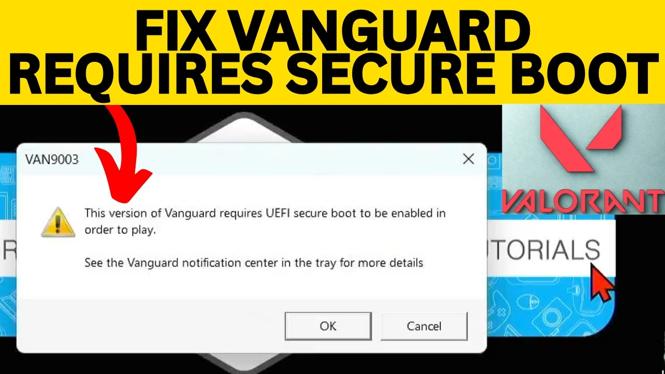
How to Fix “This Version of Vanguard Requires UEFI Secure Boot To Be Enabled In Order To Play”
If you’re encountering the “This Version of Vanguard Requires UEFI Secure Boot To Be Enabled In Order To Play” error when trying to launch Valorant, you’re not alone. This common issue, associated with the VAN9003 error code, can prevent you from enjoying one of the most popular competitive games. Fortunately, the solution lies in your BIOS settings, where you need to enable UEFI Secure Boot. This article will guide you through the necessary steps to resolve this error on your Windows PC in 2026, ensuring you can get back into the action quickly and easily.
Video Tutorial
Why You Might Be Looking for This Tutorial
Players often search for solutions to the VAN9003 error because it blocks access to Valorant, leading to frustration and wasted gaming time. The error typically appears on systems where UEFI Secure Boot is disabled, and since the Vanguard anti-cheat system requires this feature, resolving the issue is critical for gamers eager to participate in battles. Knowing how to access the BIOS and enable UEFI Secure Boot can empower you to fix this error efficiently and help you regain your gaming experience.
Steps to Enable UEFI Secure Boot
- Restart Your Computer: Begin by restarting your PC. As it boots up, be ready to access the BIOS setup. This usually requires pressing a specific key like F2, Del, or Esc. The key can vary depending on your motherboard manufacturer.
- Enter the BIOS Setup: Once you press the correct key, you will enter the BIOS setup screen.
- Navigate to the Security Tab: Using the arrow keys on your keyboard, navigate to the “Security” tab within the BIOS settings.
- Check Secure Boot Status: Look for an option labeled “Secure Boot” and verify its current status. If it is disabled, you will need to change it.
- Enable UEFI Secure Boot: To enable Secure Boot, select the option and change it to “Enabled.” If you cannot select this option, you may need to switch the “Boot Mode” to UEFI first.
- Save Changes and Exit: After enabling Secure Boot, ensure you save your changes before exiting the BIOS. This is typically done by pressing F10 or selecting the “Save and Exit” option.
- Boot Into Windows: Your computer will restart. Allow it to boot into Windows normally.
- Launch Valorant: Finally, open Valorant to check if the VAN9003 error is resolved and you can now play without issues.
By following these steps, you can successfully enable UEFI Secure Boot and eliminate the error message blocking your access to Valorant. Enjoy your gaming!
More Windows 11 Tips & Tutorials:
 Subscribe Now! 🙂

Discover more from Gauging Gadgets
Subscribe to get the latest posts sent to your email.