How to Use MP3 Song as Ringtone on iPhone
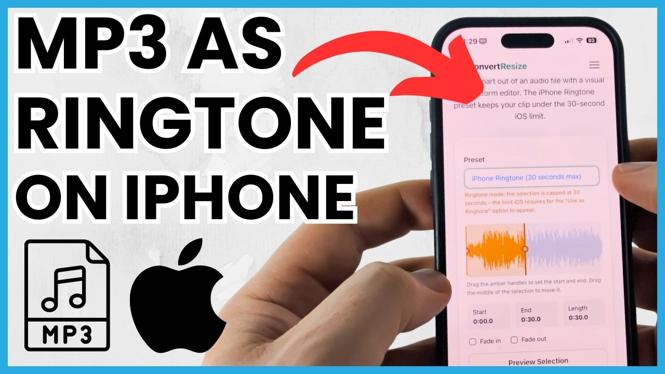
Are you tired of the same old ringtone on your iPhone? Do you want to personalize your phone with your favorite MP3 song? In this guide, we will show you how to set any MP3 file as your ringtone on iPhone, making it easier than ever to enjoy your preferred tunes. By the end of this tutorial, you will learn how to customize your iPhone ringtone without the need for GarageBand or iTunes, using just your iPhone.
Video Tutorial
Why You Might Be Looking for This Tutorial
Customizing your iPhone’s ringtone is a great way to express your individuality. Many people find the generic ringtones uninspiring and prefer using songs that hold a special meaning for them. The process has become more streamlined and accessible in recent years, especially with newer iPhone models and iOS updates. This tutorial is designed for users of iPhone 17, iPhone 16, or any iPhone running iOS 26, allowing anyone to create and set a personalized ringtone quickly and efficiently, all from their device.
Steps to Set an MP3 Song as Ringtone on iPhone
- Download your MP3 file: First, ensure you have the MP3 file saved on your iPhone. You can download songs using various apps or file-sharing services directly on your device.
- Open the Files app: Locate the downloaded MP3 file by opening the Files app on your iPhone. Navigate to the folder where the MP3 file is saved.
- Share the MP3 file: Tap and hold the MP3 file until the sharing options appear. Select the “Share” icon, which usually looks like a square with an arrow pointing upward.
- Select “Ringtone”: In the sharing menu, look for an option that says “Ringtone” or “Create Ringtone”. Tap on it, and you’ll be directed to a new screen dedicated to setting up ringtones.
- Adjust the ringtone length: You may want to trim the MP3 song to select only the part you desire as a ringtone. Use the provided trimming tools to adjust the length (usually around 30 seconds is ideal). Once you’re satisfied, save the changes.
- Name your ringtone: Once you’ve trimmed the song, you’ll be prompted to name your new ringtone. Choose something easy to remember so you can find it quickly in settings later.
- Set your ringtone: After creating the ringtone, you will have the option to set it directly as your default ringtone or assign it to a specific contact. Choose your preferred option.
Conclusion
After completing these steps, you will have successfully set an MP3 song as your ringtone on your iPhone. This method offers a simple and quick way to personalize your device without relying on a computer or additional software. Enjoy your new custom ringtone and make your iPhone experience even more enjoyable!
More iPhone Tips & Tutorials:
 Subscribe Now! 🙂

Discover more from Gauging Gadgets
Subscribe to get the latest posts sent to your email.