How to Factory Reset Samsung Phone without Password
If you find yourself locked out of your Samsung phone and need to regain access, performing a factory reset is a viable solution. This method can be especially useful if you have forgotten your password, PIN, or pattern. Whether you own the latest Samsung Galaxy S25, S24, A16, or another model, this guide will provide you with the steps to reset your device to factory settings without needing to enter your credentials. Resetting your phone will erase all your data, so proceed with caution, but it will also allow you to start fresh and regain access to your device.
Video Tutorial
Why One Might Be Looking for This Tutorial
There are several reasons why you might find yourself needing to perform a factory reset on your Samsung phone without a password:
- Forgotten Password: Perhaps you’ve forgotten your screen lock, preventing you from accessing your phone.
- Locked Out: You might have entered the wrong password multiple times, leading to a temporary lockout.
- Device Performance Issues: Frequent freezes or slow performance can necessitate a reset, especially if you cannot access settings to do so normally.
- Preparing for Sale: If you are planning to sell or give away your phone, performing a factory reset is a responsible way to ensure your personal information is removed.
Steps to Factory Reset Your Samsung Phone without a Password
Follow these steps to perform a factory reset on your Samsung phone:
- Turn Off Your Device: Begin by turning off your Samsung phone. Press the power button and select “Power Off” from the menu.
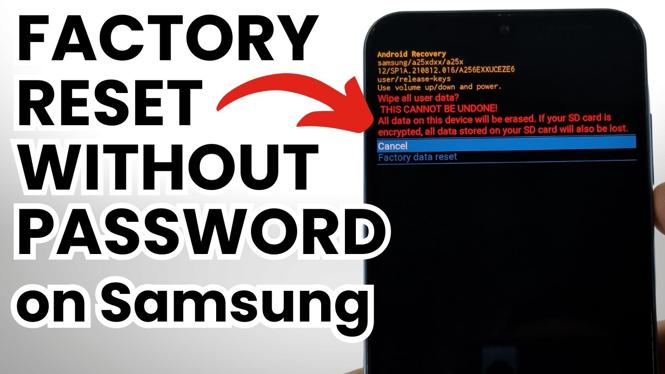
- Enter Recovery Mode: Connect the device to a charger. Then, simultaneously press and hold the Volume Up button, the Power button, and the Home button (if your model has one). Keep holding these buttons until you see the Samsung logo, then release them.
- Navigate the Recovery Menu: Use the Volume buttons to scroll through the options and highlight “Wipe data/factory reset.” Press the Power button to select this option.
- Confirm the Reset: Scroll down to “Yes” using the Volume buttons and press the Power button to confirm. Your device will then begin the factory reset process.
- Reboot Your Device: After the reset is complete, select “Reboot system now” from the menu. Your Samsung phone will restart and should be back to its original factory settings, free of any locks.
After completing these steps, your Samsung phone will be completely reset, allowing you to set it up as new. Remember that this process will erase all data on the device, so it’s best suited for situations where you cannot access your phone by other means. By following this tutorial, you can regain control of your Samsung device and enjoy a fresh start.
More Samsung Phone Tips & Tutorials:
 Subscribe Now! 🙂

Discover more from Gauging Gadgets
Subscribe to get the latest posts sent to your email.