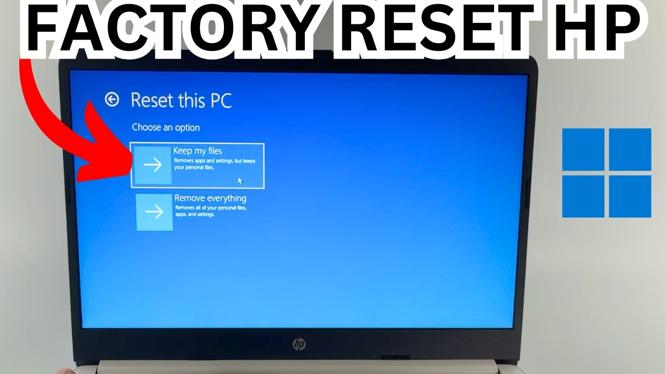
How to Factory Reset HP PC Or Laptop Without Password
Factory resetting your HP PC or laptop can be a necessary step if you’re experiencing performance issues, planning to sell your device, or simply want to start fresh. However, if you’ve forgotten your password, the process can seem daunting. This guide will provide you with detailed steps to reset your HP desktop or laptop to factory settings without the need for a password. Whether you own an HP Pavilion, Envy, Spectre, or any other model running Windows 10 or Windows 11, we’ve got you covered.
Video Tutorial
Why You Might Be Looking for This Tutorial
There can be several reasons you’re seeking to factory reset your HP PC or laptop without a password. Perhaps you’ve forgotten your sign-in credentials and cannot access your system, or maybe you’ve encountered persistent software issues that require a refresh. This tutorial is designed for users of various HP models, including the Pavilion, Envy, and Spectre series. The steps provided are simple enough that no technical expertise is required, making it accessible for anyone facing similar challenges.
Steps to Factory Reset HP PC Or Laptop Without Password
- Access the Recovery Environment: Start your HP device and repeatedly tap the F11 key as the computer boots up. This action should take you to the Recovery Manager.
- Select Troubleshoot: Once in the Recovery Manager, click on the Troubleshoot option to proceed.
- Choose Reset this PC: Select Reset this PC. This choice allows you to choose how you want to reset your PC.
- Choose a Reset Option: You will see two options: Keep my files and Remove everything. If you want a complete factory reset, select Remove everything.
- Follow the On-Screen Instructions: Follow the prompts on your screen. There may be options about how to reinstall Windows; you can choose to download from the cloud or local installation.
- Confirmation: Once your choices are made, you will receive a summary of what’s going to happen. Confirm to proceed, and the reset will begin.
- Wait for the Process to Complete: The factory reset process may take some time, so be patient. Your PC will restart multiple times during this process.
- Set Up Your Device: When the reset is complete, you will be prompted to set up your device as you did when it was new. Follow the on-screen instructions to finish the setup.
By following these steps, you can successfully factory reset your HP PC or laptop without needing your password, giving you a fresh start with your device. Whether you have Windows 10 or Windows 11, the process remains straightforward and effective.
More Windows 11 Tips & Tutorials:
 Subscribe Now! 🙂

Discover more from Gauging Gadgets
Subscribe to get the latest posts sent to your email.