How to Fix Can’t Turn Off Attention Aware Features on iPhone
Are you frustrated because you can’t turn off the Attention Aware Features on your iPhone? If you’ve encountered the issue of the setting being greyed out, you are not alone. This problem affects many users, particularly those with iPhone 17, iPhone 16, and other Face ID models running iOS 26. In this blog post, we will guide you through the steps to regain control over your device’s display and alert settings without the need for an Apple Store visit. By following these steps, you can prevent your screen from dimming and manage notification volume to suit your preferences.
Video Tutorial
Why You Might Be Looking for This Tutorial
The Attention Aware Features on your iPhone are designed to enhance your user experience by adjusting settings based on your attention. However, this feature can sometimes be more of a hindrance than a help. Whether you’re trying to keep your screen from dimming when you’re looking at it or managing notification volumes, here are some reasons why you might be seeking a solution:
- Screen Dimming: The automatic screen dimming can be distracting during video calls or while reading.
- Notification Volume: You may be experiencing issues with notification sound levels that you wish to adjust.
- Personal Preference: Some users simply prefer to have manual control over their display and alert settings.
- Greyscale Settings: The greyed-out option can be an annoyance, leaving you feeling powerless over your device.
Steps to Fix the Greyed Out Attention Aware Features
Here are the steps you can take to disable the Attention Aware Features on your iPhone:
- Open Settings: Start by unlocking your iPhone and navigating to the ‘Settings’ app.
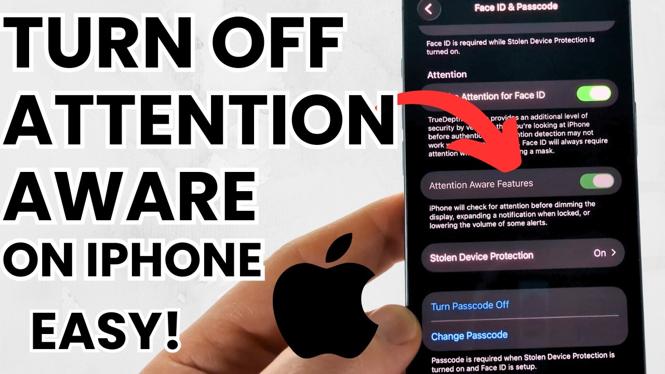
- Access Face ID & Passcode: Scroll down and select ‘Face ID & Passcode.’ You may need to enter your passcode.
- Turn Off Attention Aware Features: Find the ‘Attention Aware Features’ option. If it is greyed out, follow the next steps.
- Toggle Face ID: To unlock the setting, toggle the ‘Use Face ID’ option off and back on. This can refresh the system’s settings.
- Check for Software Updates: Ensure your iPhone is running the latest version of iOS. Go to ‘Settings,’ then ‘General,’ and select ‘Software Update.’
- Restart Your Device: Sometimes, simply restarting your iPhone can fix software glitches.
If you have performed all these steps and the issue persists, consider reaching out to Apple Support for further assistance. Remember, you shouldn’t have to live with settings that are inconvenient for you.
Conclusion
There you have it! With these simple steps, you can regain control over your iPhone’s Attention Aware Features and enjoy a more tailored user experience. If you found this tutorial helpful, make sure to check out our video for a visual guide, and share this post with anyone who might also be struggling with their iPhone settings.
More iPhone Tutorials:
 Subscribe Now! 🙂

Discover more from Gauging Gadgets
Subscribe to get the latest posts sent to your email.