How to See FPS on Fortnite
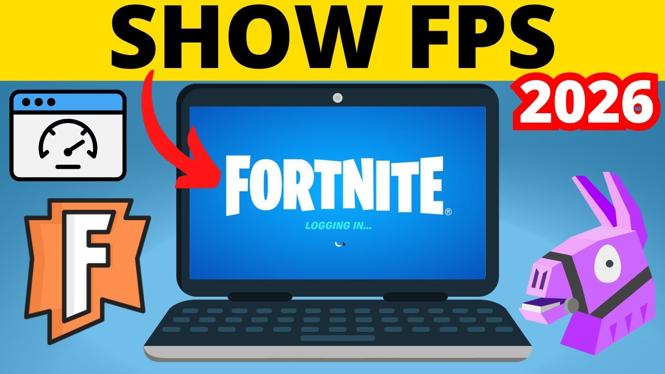
In the fast-paced gaming environment of Fortnite, performance is crucial. Players often seek ways to improve their gaming experience, and one of the essential metrics they can monitor is Frames Per Second (FPS). Knowing your FPS can help you optimize settings, enhance performance, and troubleshoot issues like lag. This guide will walk you through the steps to display your FPS in Fortnite on various platforms including PC, PlayStation, Xbox, and Nintendo Switch.
Video Tutorial
Why You Might Be Looking for This Tutorial
Gamers often face challenges related to performance, especially when engaging in competitive matches. By monitoring FPS, you can gain insights into how well your game is running. A lower FPS might indicate that your settings are too high for your hardware, leading to lag. Understanding and displaying your FPS allows you to make necessary adjustments, enhance your gaming experience, and ultimately improve your skills. Whether you’re a novice player hoping to learn the ropes or a seasoned gamer looking to refine your performance, this tutorial is designed to meet your needs.
Steps to See FPS in Fortnite
For PC Users
- Launch Fortnite and navigate to the Settings menu.
- Go to the Game tab.
- Scroll down and look for the Show FPS option.
- Toggle this option to On.
- Your FPS will now be displayed on the screen during gameplay.
For PlayStation and Xbox Users
- Access the game settings by pressing the options button (PlayStation) or menu button (Xbox).
- Navigate to the Game settings.
- Turn on the Show FPS feature, if supported by your console.
- You may need to check the in-game settings and confirm that FPS display is enabled.
For Nintendo Switch Users
- Open the game and head to the Settings menu.
- Look for the option to view frame rate or performance settings.
- Enable any available FPS display options.
Conclusion
Displaying FPS in Fortnite can significantly enhance your gaming experience, allowing you to make informed adjustments to settings based on your performance metrics. By following the steps outlined in this guide, you should now be able to see your FPS, optimize your gameplay, and troubleshoot any gaming issues that arise. Happy gaming!
More Fortnite Tips & Tutorials:
 Subscribe Now! 🙂

Discover more from Gauging Gadgets
Subscribe to get the latest posts sent to your email.