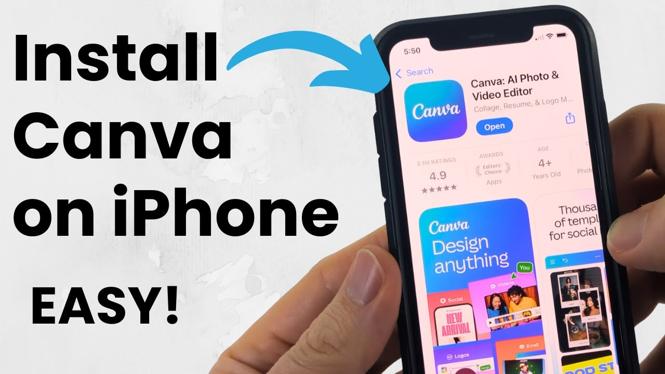
How to Install Canva App on iPhone
The Canva app revolutionizes the way you create and design graphics directly from your mobile device. With its powerful editing tools, templates, and user-friendly interface, Canva allows anyone to create visually stunning content for social media, marketing materials, and more—all from the convenience of their iPhone.
Why You Might Be Looking for This Tutorial
Are you looking to enhance your social media presence with eye-catching graphics? Do you want to create professional-looking designs without the hassle of using a computer? Installing the Canva app on your iPhone is an essential step to achieving your creative goals. Perhaps you want to create promotional materials for your business, or simply wish to design beautiful graphics to share with friends and family. Whatever the reason, this tutorial will guide you through the process of downloading and installing the Canva app, making it easier for you to unleash your creativity on the go.
Video Tutorial
Step-by-Step Guide to Install Canva App on iPhone
Step 1: Open the App Store
Start by locating the App Store icon on your iPhone’s home screen. Tap on the icon to open the App Store.
Step 2: Search for Canva
Once the App Store is open, tap on the “Search” tab at the bottom of the screen. Type “Canva” in the search bar and press search. You will see a list of applications related to your search query.
Step 3: Download the App
Find the official Canva app in the search results. It should feature the distinctive Canva logo. Tap on the “Get” button next to the app, and it will begin downloading. If prompted, enter your Apple ID password or use Face ID/Touch ID to confirm the download.
Step 4: Wait for Installation
Once the app is downloaded, it will automatically install on your device. You will see a progress indicator, and within moments, the icon will appear on your home screen.
Step 5: Open Canva and Create an Account
Tap the Canva icon to open the app. If you’re new to Canva, you’ll need to create an account. Follow the on-screen instructions to sign up using your email address, Google account, or Facebook account.
Step 6: Start Designing
After setting up your account, you will have access to a wide range of templates and design options. Explore the app and start creating your first design!
Conclusion
Installing the Canva app on your iPhone is a simple process that opens up a world of design possibilities. With easy access to powerful design tools right at your fingertips, you can create professional-quality graphics anytime, anywhere. Follow these steps to download and start using Canva today!
More iPhone Tutorials:
 Subscribe Now! 🙂

Discover more from Gauging Gadgets
Subscribe to get the latest posts sent to your email.