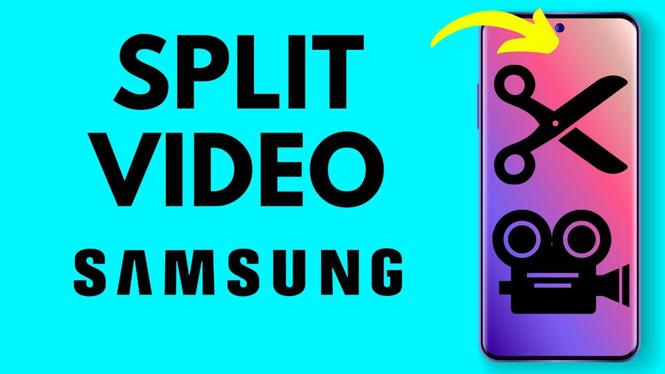
How to Split Video on Samsung Phone
In today’s digital age, video content plays a vital role in communication, marketing, and personal expression. Whether you’re a content creator, a business looking to engage your audience, or someone who simply wants to share memories, having the ability to edit videos directly from your smartphone can be a game changer. If you own a Samsung phone, you have access to a powerful tool built right into the Samsung Gallery app, which makes video editing quick and easy. In this tutorial, we will guide you on how to split a video on a Samsung phone by cutting unwanted sections without the need for additional applications.
Video Tutorial
Why You Might Be Looking for This Tutorial
Many users seek to split videos for various reasons, including:
- Removing Unwanted Sections: Often, you may capture footage that isn’t needed, such as long pauses or background distractions.
- Creating Highlights: You might want to condense a longer video into a highlight reel for social media or sharing purposes.
- Improving Flow: Trimming videos can enhance the overall flow, making the content more engaging for viewers.
- Easy Sharing: Smaller video files are easier to share via messaging apps or social media platforms.
Steps to Split a Video on Samsung Phone
Follow these simple steps to split your video using the Samsung Gallery app:
- Open the Samsung Gallery App: Locate and launch the Gallery app on your Samsung device.
- Select the Video: Navigate to the video you want to edit and tap on it to open it.
- Access the Video Editor: Tap on the ‘Edit’ icon, usually represented by a pencil or similar symbol.
- Use the Trim Feature: Look for the ‘Trim’ or ‘Split’ option within the video editing tools. Here, you will see a timeline of the video.
- Split the Video: Drag the sliders to select the portion of the video you want to keep. You can also use the scissors icon (if available) to split the video at specific points.
- Remove Unwanted Sections: After splitting, select the parts of the video you want to delete and confirm the removal.
- Save Your Changes: Once you are satisfied with the edits, tap on the ‘Save’ icon to save the trimmed version of your video.
And that’s it! You have successfully split a video on your Samsung phone using the built-in Gallery app. This process is straightforward and allows for quick editing on the go, enabling you to enhance your video content without much hassle.
Conclusion
Learning how to split videos on your Samsung phone not only saves time but also empowers you to manage your video content effectively. With this built-in feature, you can easily remove unwanted sections, create engaging highlights, and improve the overall quality of your videos, all from the convenience of your mobile device. Start editing today and make the most out of your video content!
More Samsung Phone Tips & Tutorials:
 Subscribe Now! 🙂

Discover more from Gauging Gadgets
Subscribe to get the latest posts sent to your email.