How to Convert Google Doc to PDF on Phone
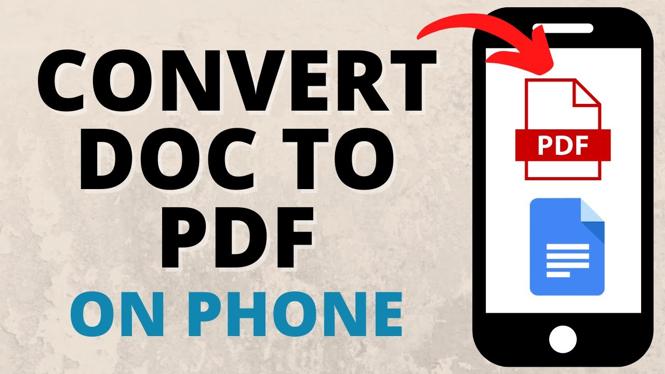
Are you looking for a quick and convenient way to convert your Google Docs to PDF directly from your phone? Whether you’re an iPhone, Android, or Samsung user, this guide will walk you through the process of saving a Google Doc as a PDF using the Google Docs app. This method is perfect for those times when you need to download, share, or email documents in PDF format while on the go. Let’s delve into the steps you need to take to seamlessly create shareable PDFs from your mobile device.
Video Tutorial
Why You Might Be Looking for This Tutorial
In today’s mobile-centric world, the ability to convert documents into PDF format right from your phone can save you time and hassle. You might need to create PDFs for several reasons:
- Professionalism: PDFs maintain formatting and are universally accepted for professional documents.
- Portability: PDFs are smaller in size and easily shareable through email or messaging apps.
- Accessibility: Many people prefer PDFs when reviewing documents since they are not easily editable, ensuring that the content remains intact.
- Convenience: Converting files from anywhere means you can stay productive even when you’re away from a computer.
Step-by-Step Guide to Convert Google Doc to PDF on Phone
Step 1: Open the Google Docs App
Begin by launching the Google Docs app on your smartphone. Ensure that you are logged into your Google account where your document is saved.
Step 2: Select the Document
Locate the document you want to convert within the app. Tap on the document to open it.
Step 3: Access the Menu Options
Once the document is open, tap on the three vertical dots (menu icon) located in the upper right corner of the screen.
Step 4: Choose ‘Share & Export’
From the dropdown menu, select ‘Share & Export’. This will give you further options regarding how to handle your document.
Step 5: Tap on ‘Save as’ and Select PDF
In the ‘Share & Export’ section, tap on ‘Save As’ and then choose the ‘PDF Document’ option to initiate the conversion process.
Step 6: Save or Share
After the conversion is complete, you will be prompted to save the PDF to your phone or share it directly via email or preferred messaging apps. Choose the desired option and proceed accordingly.
Conclusion
Converting Google Docs to PDF on your phone is a straightforward process that can enhance your productivity by allowing you to manage documents efficiently while on the go. With just a few taps, you can create PDFs ready for sharing, ensuring that your documents maintain their intended format and are easily accessible for others. Now that you know how to do it, you can confidently handle your document conversion needs right from your smartphone.
More Google Docs Tips & Tutorials:
 Subscribe Now! 🙂

Discover more from Gauging Gadgets
Subscribe to get the latest posts sent to your email.