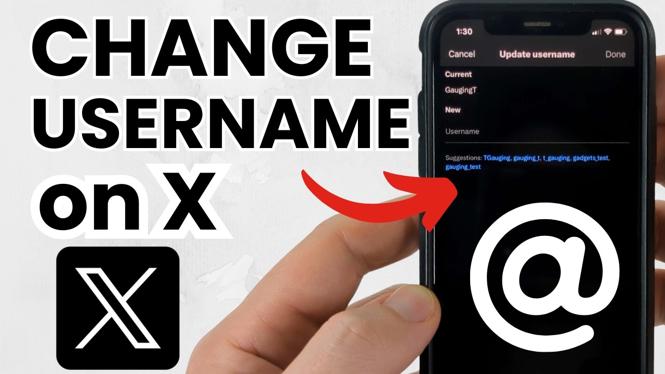
How to Change Your Username on X (formerly Twitter)
Changing your username on X can be a simple yet significant adjustment for your online presence. Whether you’re rebranding, changing your focus, or just want a fresh start, modifying your username allows you to maintain your followers and content while presenting a new identity. This tutorial will guide you through the necessary steps to successfully change your username on X for both desktop and mobile platforms.
Video Tutorial
Why You Might Be Looking for This Tutorial
There could be several reasons why you are looking to change your username on X. Perhaps you’ve decided to rebrand your account to align with a new business direction, or maybe you simply wish to update your username to something more reflective of your personality. Another possibility might be that your current username no longer resonates with your audience or the content you post. Whatever the reason, it’s valuable to know how to change your username while ensuring you retain your followers and Twitter history. Luckily, the process is straightforward!
Steps to Change Your Username on X
Step 1: Log in to Your Account
Begin by logging into your X account on either a desktop or mobile device. Ensure you have access to the account you want to change the username for.
Step 2: Navigate to Your Profile
On your desktop, click on your profile picture or icon on the left side menu. On mobile, tap on your profile icon located at the top left corner of the screen to access your profile.
Step 3: Access Account Settings
Once on your profile, look for a button that says “Edit Profile” and click it. Alternatively, you can also click on the “More” option (three dots) and select “Settings and privacy” to access your account settings.
Step 4: Update Your Username
In the settings menu, look for the “Your account” section and select “Username.” Here, you’ll see your current username. Click on it to edit, and type in your desired new username. X will automatically check if the username is available. If it is, a green checkmark will appear; if not, you may need to select another option.
Step 5: Save Changes
Once you’ve found a username that you like and is available, make sure to save your changes. Look for a “Save” button at the bottom of the settings page. Click it to finalize your new username.
Step 6: Confirm Changes
After saving, refresh your profile to ensure that the changes have been applied. Your new username should now be visible, and you can continue to use your account without losing any of your followers or tweets.
Conclusion
Changing your username on X is a straightforward process that can dramatically impact your online identity. Whether for personal or professional reasons, this tutorial has equipped you with the necessary steps to make the change smoothly. Remember, your username is a vital part of your digital brand, so choose wisely!
More X Tutorials:
 Subscribe Now! 🙂

Discover more from Gauging Gadgets
Subscribe to get the latest posts sent to your email.