Start with Recovery Mode
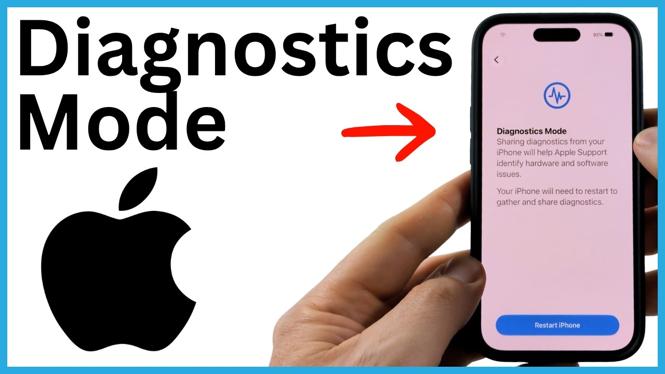
To put your iPhone in Diagnostics Mode, first turn it off, enter Recovery Mode, then choose the diagnostics option. This can help when something is not working correctly or when Apple Support asks you to run a diagnostics session.
The process shown here uses the Recovery Mode screen to restart the iPhone into Diagnostics & Repair. You will need to connect the iPhone to Wi-Fi and agree to let it contact support before diagnostics can begin.
Video Tutorial
Put Your iPhone in Diagnostics Mode
-
Turn off your iPhone completely. You can press and hold the Volume Up button and the Power button together, then drag the power-off slider.
-
You can also power it off from Control Center. Swipe down from the top-right corner, press and hold the power icon in the top-right corner, then use the power-off slider.
-
Wait until the display is fully black. Your iPhone needs to be completely powered off before you continue.
-
Press and hold the Power button. Keep holding it when the Apple logo appears.
-
Continue holding the button when you see Continue Holding for Recovery.
-
Release the Power button when the screen says Loading Recovery Options.
-
Wait for the Recovery Mode options to load. Select the diagnostics option shown on the screen.
-
Select Restart iPhone. Your iPhone will restart into Diagnostics Mode.
Connect to Wi-Fi and Begin Diagnostics
After the restart, the iPhone opens the Diagnostics & Repair screen. Select Continue to move forward.
You will then be asked to join a Wi-Fi network. Choose your network and wait for the iPhone to connect. This connection is required because the process contacts Apple Support.
Read the information displayed on the screen and agree when you are ready. The iPhone can then begin the available diagnostic checks. These checks can help identify possible hardware or software issues.
Diagnostics can be useful for investigating problems with parts such as the battery, display, camera, and other iPhone hardware. The results can also give Apple Support useful information if you need more help with a repair issue.
If Recovery Mode Does Not Appear
The timing matters here. Start with the iPhone fully off, then keep holding the Power button past the Apple logo. Releasing the button at the Apple logo will simply start the iPhone normally instead of opening the recovery options.
Do not release the button until you see Loading Recovery Options. Give the phone a moment after that message appears, since the Recovery Mode choices may take a little time to load.
If the iPhone starts normally, turn it off again and repeat the process. Make sure the screen has gone completely black before holding the Power button.
Exit Diagnostics Mode
When you are finished, select Exit Diagnostics. This leaves Diagnostics Mode and returns your iPhone to normal use.
If you were directed to use this feature by Apple Support, keep any information from the session available for them. If you see a problem during the checks, you can use that result when discussing the next repair steps with support.
More iPhone Tips & Tutorials:
 Subscribe Now! 🙂


Discover more from Gauging Gadgets
Subscribe to get the latest posts sent to your email.