How to Factory Reset ASUS PC Or Laptop WITHOUT Password
In today’s digital age, our PCs and laptops are essential tools for both personal and professional tasks. However, situations may arise where you need to restore your ASUS computer to its factory settings. This could be due to various reasons such as forgetting your password, experiencing severe performance issues, or preparing your device for resale. Fortunately, you can reset your ASUS PC or laptop without a password by utilizing the built-in recovery partition. This tutorial will guide you through the necessary steps to clean your device effectively, ensuring a fresh start.
Video Tutorial
Why You Might Be Looking for This Tutorial
There are several reasons why you might need to factory reset your ASUS PC or laptop without a password:
- Forgotten Password: If you’ve locked yourself out of your device and can’t remember your login credentials, this method allows you to regain access without needing the password.
- Performance Issues: Over time, computers can become sluggish due to software bloat, viruses, or accumulated errors. A factory reset can solve these issues by removing all unnecessary files and restoring optimal performance.
- Preparing for Resale: If you’re planning to sell or give away your laptop, a factory reset ensures that all your personal data is wiped clean, protecting your privacy.
- Software Troubles: If your operating system is malfunctioning, a factory reset can help restore your ASUS device to its original state, often resolving persistent software issues.
Steps to Factory Reset ASUS PC or Laptop WITHOUT Password
Step 1: Turn Off Your Device
Start by completely shutting down your ASUS laptop or PC. Make sure it is not in sleep or hibernation mode.
Step 2: Access the Recovery Environment
Turn on your device and immediately start tapping the F9 key repeatedly until you see the recovery screen. This may take some time, so be patient.
Step 3: Choose Your Language
Once the recovery environment loads, you will be prompted to select your language. Choose your preferred language and click Next.
Step 4: Click on Troubleshoot
In the recovery options, select Troubleshoot. This will lead you to more recovery options.
Step 5: Select Reset This PC
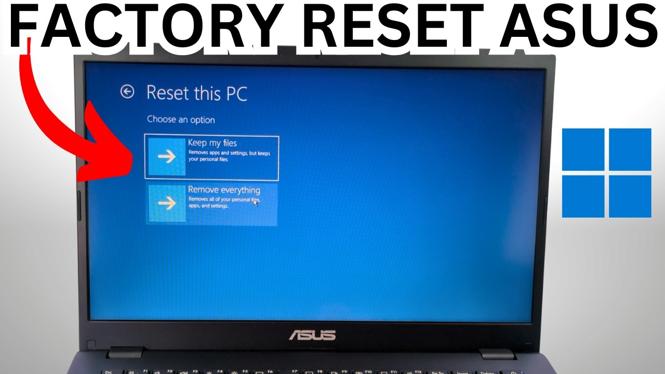
Now, click on Reset this PC. You will be given two options: Keep my files or Remove everything. To perform a complete factory reset, choose Remove everything.
Step 6: Confirm Your Selection
Follow the on-screen instructions. You may be asked to confirm your choice to remove everything. Do so, and the process will begin.
Step 7: Wait for the Reset Process
The reset process may take some time. Your computer will reboot several times during this procedure. Let it complete without interruption.
Step 8: Set Up Your Device
Once the reset is finished, you will see the Windows setup screen. Follow the prompts to set up your ASUS PC or laptop as if it were brand new. You will be able to create a new user account and configure your settings.
Conclusion
Factory resetting your ASUS PC or laptop without a password can be a straightforward process if you follow the steps outlined above. Whether you’re locked out of your device, experiencing performance issues, or preparing to sell, a factory reset can help you achieve a fresh start. Remember to back up any important files before starting the process, as all data will be erased. Now you can enjoy a clean slate with your ASUS device!
More Windows 11 Tips & Tutorials:
 Subscribe Now! 🙂

Discover more from Gauging Gadgets
Subscribe to get the latest posts sent to your email.