How to Factory Reset Windows 11 PC or Laptop Without Password
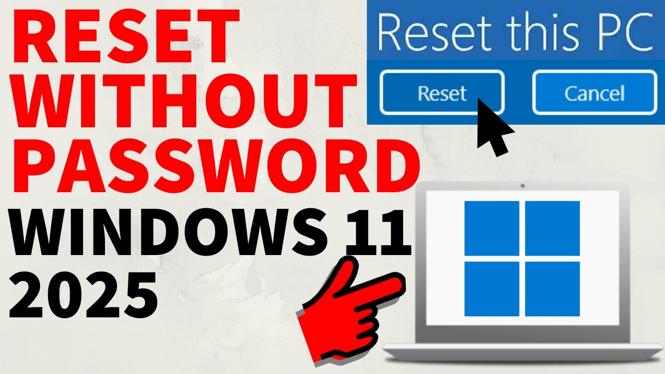
If you find yourself needing to factory reset your Windows 11 PC or laptop but don’t have access to the password, you’re not alone. There are many reasons why someone might need to perform a factory reset without logging in, such as preparing a computer for sale, troubleshooting persistent issues, or simply wanting a fresh start. This guide will walk you through the steps required to reset your device securely so that you can set it up as new.
Video Tutorial
Why You Might Be Looking for This Tutorial
Understanding how to factory reset a Windows 11 PC or laptop without a password is crucial for several reasons:
- Managing Access: If you’ve forgotten your password, a factory reset provides a way to regain control of your device.
- Preparing for Sale: Before selling your computer, it’s wise to reset it to erase personal data and ensure the new owner has a fresh start.
- Troubleshooting: If the system is experiencing serious issues, a factory reset can resolve these problems effectively.
- Performance Improvement: Over time, systems can become sluggish. A fresh install can restore speed and functionality.
Steps to Factory Reset Windows 11 PC or Laptop Without Password
Follow these steps to perform a factory reset on your Windows 11 device without needing to log in:
- Access the Recovery Environment: Start your computer and press the power button to turn it off during the Windows startup. Repeat this method 2-3 times until you see the “Preparing Automatic Repair” screen. Select “Advanced options” once prompted.
- Select Troubleshoot: In the recovery environment, click on “Troubleshoot” followed by “Reset this PC.”
- Choose an Option: You will be presented with two options: “Keep my files” or “Remove everything.” If you want to reset and erase all data, select “Remove everything.”
- Further Options: You may be asked whether to clean the drives as well. If you’re selling the PC, it’s recommended to choose “Remove files and clean the drive” for added security.
- Confirm Reset: Finally, confirm your selection and wait for the process to finish. This may take some time, so be patient.
- Set Up as New: Once the reset is complete, your computer will restart and prompt you to set it up as a new device.
With these steps, you can easily factory reset your Windows 11 PC or laptop without needing the password. Ensure that your important files are backed up if possible, as this process will erase all data on your device. If you encounter any issues during the reset, refer back to the video tutorial for a visual guide to the process.
More Windows 11 Tips & Tutorials:
 Subscribe Now! 🙂

Discover more from Gauging Gadgets
Subscribe to get the latest posts sent to your email.