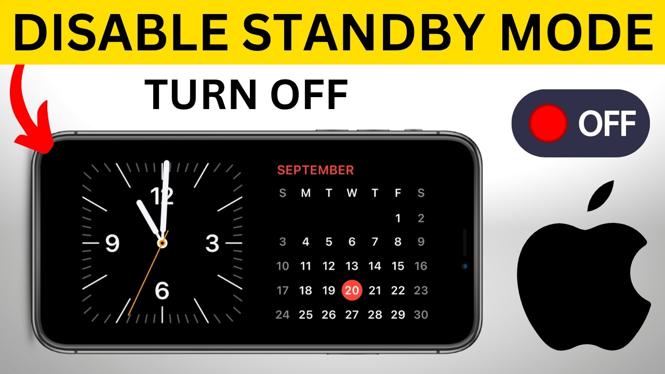
How to Turn Off StandBy Mode on iPhone
If you own an iPhone and have been exploring various features, you may have come across the StandBy Mode introduced in 2026. While this feature can be helpful for using your iPhone as a bedside display while it charges, you might prefer not to use it. In this blog post, we’ll guide you through the steps to easily turn off StandBy Mode on your iPhone.
Why You Might Be Looking for This Tutorial
StandBy Mode can be a useful tool, but it may not suit everyone’s needs. Here are a few reasons why you might want to turn it off:
- You prefer a dark screen while your iPhone charges, rather than displaying the clock and widgets.
- You find the StandBy Mode distracting at night or during the day.
- You want to minimize screen usage and conserve battery life while your iPhone is charging.
- You simply don’t like the appearance of the stand-by display.
Steps to Turn Off StandBy Mode on iPhone
Follow these simple steps to disable StandBy Mode on your iPhone:
- Open the Settings app on your iPhone.
- Scroll down and tap on Display & Brightness.
- Find the option for StandBy Mode within the Display settings.
- Toggle the switch next to StandBy Mode to turn it off.
- Exit the Settings app. Your changes will be saved automatically.
Once completed, your iPhone will no longer enter StandBy Mode and will keep the screen off while it charges.
Video Tutorial
More iPhone Tips & Tutorials:
 Subscribe Now! 🙂
1
/
26


How to Make Photo Collage on iPhone - No Apps Needed
How to Change Clock Style & Color in StandBy Mode on iPhone
How to Resize Image Without Cropping on iPhone
How to Turn Off StandBy Mode on iPhone - EASY
How to Enable / Disable Red Tint on iPhone Standby Mode - Turn Off Red Tint Night Mode
How to Turn On & Use StandBy Mode on iPhone
How to Use MP3 Song as Ringtone on iPhone - 2026
How to Factory Reset iPhone to Sell - Wipe iPhone Before Selling
How to Make QR Code on iPhone - Step By Step
How To Make Ringtone For iPhone With Garageband - Step By Step
How To Make A Ringtone On iPhone With GarageBand - Easy Guide
How to Scan QR Code on iPhone
How to Scan QR Code on Your iPhone Screen
How to Fix SOS Only on iPhone - Turn Off SOS Only iPhone
How to Install & Use Claude AI on iPhone
1
/
26
Discover more from Gauging Gadgets
Subscribe to get the latest posts sent to your email.