How to Make QR Code on ANY Device
In our increasingly digital world, QR codes have become vital tools for sharing information quickly and efficiently. They can hold links to websites, Wi-Fi passwords, contact details, and more. The beauty of QR codes lies in their versatility; you can generate them on virtually any device, whether it’s an iPhone, Android, PC, Mac, or Chromebook. This blog post will guide you through the process of creating a QR code effortlessly, empowering you to share information in just a few clicks.
Why You Might Be Looking for This Tutorial
There are countless reasons why someone would want to create a QR code:
- Quick Sharing: QR codes eliminate the need for typing long URLs or complex information.
- Customizable: You can generate QR codes that link to personalized content, enhancing your branding.
- Multi-Device Compatibility: Whether you’re on a phone, tablet, or computer, you’ll find a tool that works seamlessly for you.
- Free Tools Available: Many platforms offer free options to generate QR codes without any hidden fees.
- Simple Process: The steps are straightforward, making it accessible for everyone, regardless of technical expertise.
Steps to Create a QR Code
Follow these simple steps to create a QR code on your device:
Step 1: Choose a QR Code Generator
There are numerous free QR code generators available online. Some popular options include:
- QR Code Generator
- QRStuff
- GoQR
Visit one of these websites on your device.
Step 2: Select the Type of QR Code
Most generators will present you with different options for the type of QR code you want to create, such as:
- URL
- Text
- Email Address
- Phone Number
Choose the type that fits your needs.
Step 3: Input Your Information
Enter the necessary information. If you’re linking to a website, paste the URL in the provided field. For Wi-Fi passwords, follow the prompts to enter the details.
Step 4: Customize Your QR Code (Optional)
Some QR code generators allow customization options, such as changing colors or adding a logo. This is a great way to ensure your QR code stands out.
Step 5: Generate and Download
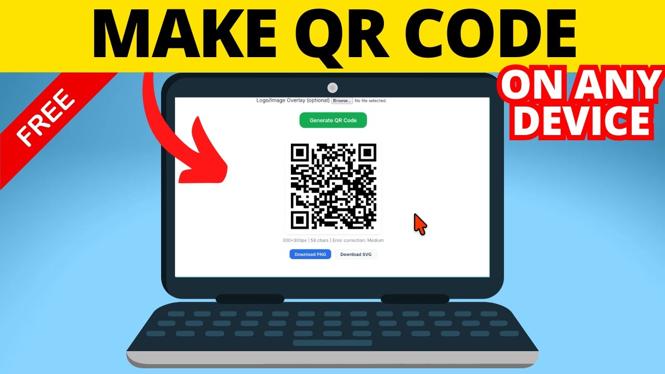
Hit the “Generate” button, and your QR code will be created. Most generators will allow you to download the QR code image in various formats, such as PNG or JPEG.
Step 6: Test Your QR Code
Before sharing, make sure to test the QR code with a QR code scanner application on your smartphone to ensure it directs users to the correct information.
Video Tutorial
For a more visual guide on how to create a QR code on any device, check out the video tutorial below:
Now that you know how to create QR codes on any device, it’s time to start generating your own and sharing information more efficiently!
More tutorials
 Subscribe Now! 🙂
Discover more from Gauging Gadgets
Subscribe to get the latest posts sent to your email.