How to Scan QR Code on Your iPhone Screen
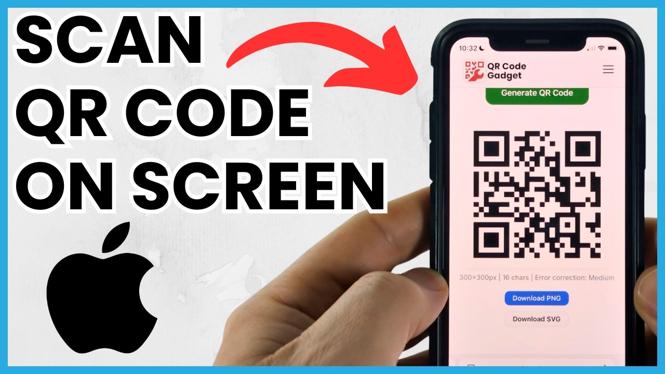
In today’s digital age, QR codes have become a convenient way to access websites, promotions, and information with a simple scan. But what if you encounter a QR code displayed on your own iPhone screen? Whether it’s in a message, a screenshot, or an app, knowing how to scan QR codes directly on your iPhone is a valuable skill. In this tutorial, we will guide you through the steps required to scan QR codes displayed on your iPhone screen, focusing on the latest devices including the iPhone 17, iPhone 16, and iPhone 15.
Video Tutorial
Why You Might Be Looking for This Tutorial
You may be looking for this tutorial for several reasons. First, you might want a quick and effective way to access information from a QR code that you see on your iPhone. Perhaps you’ve received a QR code in a text message, or you’ve taken a screenshot of it but aren’t sure how to scan it. With the advancements in QR code technology and the continuous updates in iOS, learning to scan QR codes directly on your iPhone screen can enhance your productivity and streamline your mobile experience.
Steps to Scan QR Code on Your iPhone Screen
Method 1: Using the Built-in Camera App
- Open the Camera app on your iPhone.
- Position the camera view over the QR code displayed on your screen.
- Wait for a notification to appear at the top of your screen, indicating that the QR code has been detected.
- Tap the notification to open the link or information associated with the QR code.
Method 2: Using QRCodeGadget
- Visit the QRCodeGadget website on your iPhone.
- Select the option to scan a QR code on the site.
- When prompted, allow access to your iPhone’s screen.
- Position the QR code on your screen within the designated area for scanning.
- Once scanned, the site will provide you with the link or information from the QR code.
Conclusion
Scanning a QR code displayed on your iPhone screen is an easy process once you know how to do it. Both methods outlined above provide quick access to the information you need, whether it’s through the built-in camera app or the QRCodeGadget website. Incorporating these techniques into your mobile routine can save you time and enhance your efficiency while using your device.
More iPhone Tips & Tutorials:
 Subscribe Now! 🙂

Discover more from Gauging Gadgets
Subscribe to get the latest posts sent to your email.