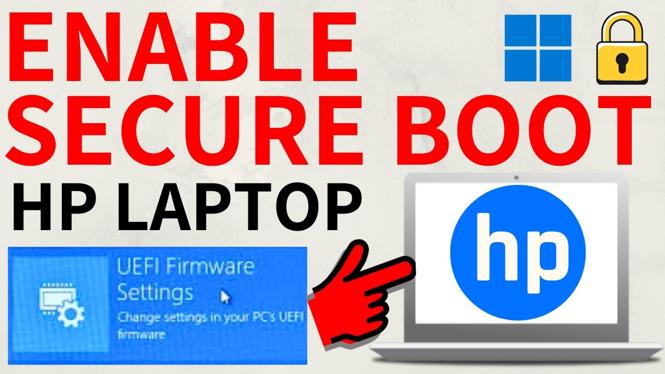
How to Enable Secure Boot on HP Laptop
In an increasingly digital world, the security of our devices is more crucial than ever. If you are an HP laptop owner, particularly in 2026 when Windows 11’s requirements make security a top priority, understanding how to enable Secure Boot is essential. Secure Boot acts as a safeguard against malicious software and unauthorized operating systems, ensuring that your device starts only with software that is trusted by the original equipment manufacturer (OEM).
Why You Might Be Looking for This Tutorial
There are several reasons why you may be searching for a guide on how to enable Secure Boot on your HP laptop:
- Upgrade to Windows 11: If you are planning to upgrade to Windows 11, enabling Secure Boot is one of the key requirements for installation.
- Enhanced Security: With cyber threats evolving, improving your device’s security is imperative. Secure Boot helps protect your system against malware and rootkits.
- No Technical Experience Required: This tutorial is designed for users of all skill levels. You don’t need to be a tech expert to make these changes.
Steps to Enable Secure Boot on Your HP Laptop
- Access the BIOS Settings: Restart your HP laptop and press the ESC key repeatedly as it boots up. Then, press the F10 key to enter the BIOS setup.
- Navigate to the Secure Boot Menu: In the BIOS menu, locate the Security tab. Use the arrow keys to navigate and find the Secure Boot option.
- Enable Secure Boot: Once you are in the Secure Boot menu, set the Secure Boot option to Enabled. You may also need to set the OS Configuration to UEFI.
- Save Changes and Exit: After making the changes, press F10 to save and exit. Confirm any prompts that appear to complete the process.
- Reboot Your Laptop: Your laptop will restart. Verify that Secure Boot is enabled by returning to the BIOS or during the boot process.
Video Tutorial
Following these steps will help you successfully enable Secure Boot on your HP laptop, enhancing its security and meeting the requirements for Windows 11. By ensuring that your device is protected from potential threats, you can use your laptop with confidence, knowing that your data is secure.
More Windows 11 Tips & Tutorials:
 Subscribe Now! 🙂

Discover more from Gauging Gadgets
Subscribe to get the latest posts sent to your email.