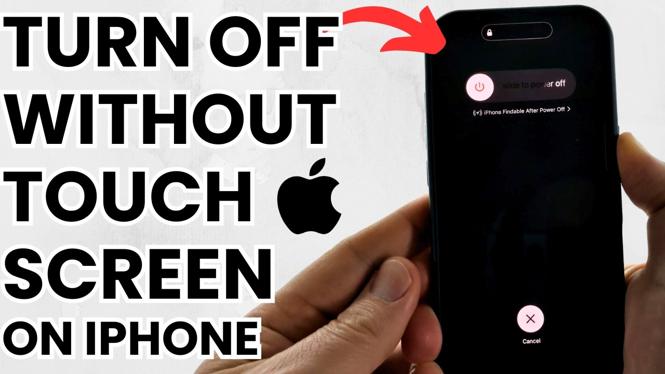
How to Turn Off iPhone Without Touch Screen
If you’ve ever found yourself with an unresponsive or broken iPhone screen, you know how frustrating it can be. Whether you’re dealing with a cracked display or your device has simply frozen, turning off your iPhone becomes a challenge. Thankfully, there are several simple methods that allow you to power down your device without relying on the touch screen. This guide will walk you through those techniques step by step.
Video Tutorial
Why You Might Be Looking for This Tutorial
People often find themselves searching for ways to turn off their iPhone without using the touch screen for various reasons. Common scenarios include:
- A cracked screen that makes touch functionality unreliable or impossible.
- A frozen or unresponsive display that prevents normal navigation.
- The need to conserve battery life quickly when the phone is not functioning properly.
- Accessibility issues for users who may not be able to use the screen effectively.
Whatever the reason, knowing how to properly shut down your iPhone can help maintain the device’s longevity and performance, ensuring that you have control over your device even in challenging situations.
Steps to Turn Off Your iPhone Without Touch Screen
Method 1: Using Button Combinations
1. **For iPhone X and Later**: Press and hold the Side button and Volume Up or Volume Down button simultaneously until the power off slider appears. Release the buttons.
2. **For iPhone 8 and SE (2nd generation)**: Press and hold the Side button and quickly press the Volume Up button, then the Volume Down button. Finally, press and hold the Side button until the slider appears.
3. **For iPhone 7, 7 Plus**: Press and hold the Volume Down button and the Sleep/Wake (Side) button until the slider appears.
4. **For iPhone 6s and Earlier**: Press and hold the Home button and the Sleep/Wake (Top) button until you see the slider.
5. **Slide to power off**: Once the slider appears, if your touch is not working, you can still help a friend or family member use the functionality that may still work, or you can move on to the next method if necessary.
Method 2: Using Accessibility Features
If your screen is completely unresponsive, you can also use the Accessibility settings to turn off your iPhone. Here’s how:
1. **Enable AssistiveTouch**: If you can access this feature, go to Settings > Accessibility > Touch > AssistiveTouch and turn it on. This will create a virtual button you can use.
2. **Using AssistiveTouch to Shut Down**: Tap the AssistiveTouch button, navigate to Device, then press and hold the Lock Screen icon until the “slide to power off” option appears.
3. **Slide to Power Off**: Use the virtual slider to turn off your device.
Conclusion
Being able to turn off your iPhone without using the touch screen is a valuable skill, especially in emergencies when your device may become unresponsive. By following the methods outlined in this tutorial, you can safely shut down your iPhone with ease, ensuring that you maintain control over your device even when the screen is not functioning properly.
More iPhone Tips & Tutorials:
 Subscribe Now! 🙂

Discover more from Gauging Gadgets
Subscribe to get the latest posts sent to your email.