Your iPhone Tracking You and Listening: A Comprehensive Guide
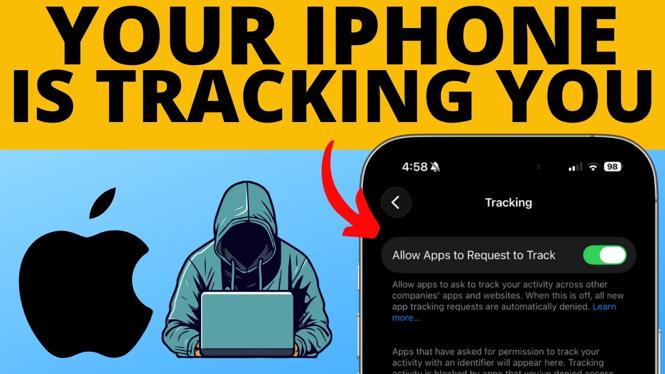
As our reliance on smartphones continues to grow, so does our concern for privacy. Many iPhone users are becoming increasingly aware of the potential for their devices to track their location and listen to their conversations. This blog post serves as a guide to help you understand how your iPhone might be tracking and listening to you, and more importantly, how to regain control of your privacy settings.
Why You Might Be Looking for This Tutorial
In today’s digital age, privacy has become a significant concern. Users often seek to enhance their cybersecurity measures and protect personal information from being mishandled. You may be wondering if your iPhone is tracking your movements or listening to your conversations without your consent. This tutorial addresses those concerns by providing you with practical steps to limit your iPhone’s access to sensitive data, ensuring a more private smartphone experience.
Steps to Stop Your iPhone from Tracking and Listening
- Review Location Services: Go to Settings > Privacy & Security > Location Services. Here, you can adjust permission settings for individual apps, limiting those that do not need your location.
- Disable Microphone Access: Navigate to Settings > Privacy & Security > Microphone. Review the list of apps with microphone access and turn off the toggle for any apps that don’t require it.
- Turn Off Background App Refresh: This feature allows apps to update in the background. Head to Settings > General > Background App Refresh and disable it entirely or select which apps can refresh in the background.
- Limit Ad Tracking: Go to Settings > Privacy & Security > Apple Advertising and toggle off personalized ads to prevent tracking across platforms.
- Modify Siri Settings: If you’re concerned about Siri listening to you, you can manage these settings in Settings > Siri & Search by turning off “Listen for ‘Hey Siri’,” “Press Side Button for Siri,” or even disabling Siri entirely.
- Check App Permissions Regularly: Regularly reviewing app permissions is crucial. In Settings, you can view which apps have access to your contact information, camera, and other personal data.
- Update Your iPhone: Ensure that your device is updated to the latest software version by going to Settings > General > Software Update. This includes important security patches that can protect your privacy.
Video Tutorial
By following the steps outlined in this tutorial, you can take proactive measures to enhance your privacy and security on your iPhone. Being informed and aware of your settings can help you regain control over who has access to your personal information, leading to a safer smartphone experience.
More iPhone Tips & Tutorials:
 Subscribe Now! 🙂

Discover more from Gauging Gadgets
Subscribe to get the latest posts sent to your email.