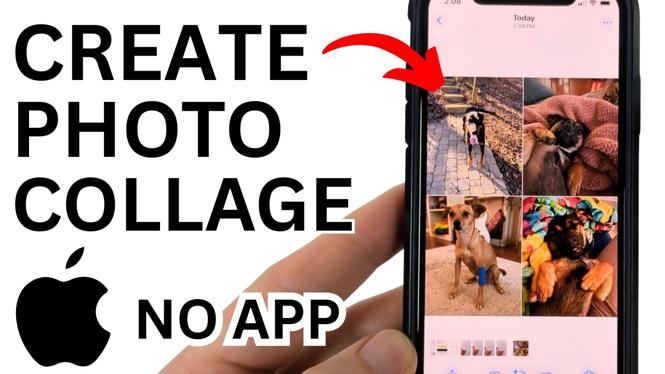
How to Make Free Photo Collage on iPhone
Creating a beautiful photo collage on your iPhone can be an enjoyable way to showcase your favorite memories. Whether you want to share beautiful moments on social media, send a personalized message to a friend, or keep a collection of your favorite pictures, making a photo collage is a fun and creative way to display your pictures. In this tutorial, we will guide you through the steps to create a stunning photo collage using free tools right on your iPhone.
Video Tutorial
Why You Might Be Looking for This Tutorial
You might be seeking a tutorial on creating a photo collage for several reasons. Firstly, you may want to produce eye-catching content for your social media accounts, engaging your followers with visually appealing posts. Secondly, combining multiple images into a single frame allows you to convey a story or theme, making it perfect for events like birthdays, vacations, or special milestones. Finally, if you’re looking for a cost-effective solution, this guide focuses on using completely free resources, so you don’t have to stress about downloading paid apps.
Steps to Create a Free Photo Collage on Your iPhone
Step 1: Open Your Browser
Start by opening the Safari browser (or any browser of your choice) on your iPhone. This method does not require any app downloads, making it accessible and straightforward.
Step 2: Visit ConvertResize.com
Type in ConvertResize.com in your browser’s address bar and press enter. This tool is useful for combining images and converting them for free.
Step 3: Upload Your Images
Once on the site, look for the option to upload images. Select the multiple photos you want to include in your collage. You can choose images from your photo library or take new ones on the spot.
Step 4: Arrange Your Collage
After uploading, you will be able to arrange your images. You can drag and drop them to adjust their positions or resize them as needed. Experiment with the layout to create a visually appealing collage.
Step 5: Customize Your Collage
Depending on the features available on ConvertResize, you may have the option to add borders, backgrounds, or other enhancements to your collage. Take some time to customize it until it looks just the way you want.
Step 6: Save Your Collage
Once you are satisfied with your creation, look for the option to save your collage. You can download it directly to your iPhone’s photo library for easy access later.
Step 7: Share Your Collage
Now that your collage is ready, you can share it on social media, send it via messages, or keep it for personal use. It’s a fantastic way to share your memories with friends and family.
Conclusion
Creating a photo collage on your iPhone is a straightforward and enjoyable process, especially when using free tools like ConvertResize.com. Follow the steps outlined in this tutorial to easily combine your favorite photos without needing to invest in paid applications. Whether for social media, messages, or personal keepsakes, a well-crafted collage is sure to impress.
More iPhone Tips & Tutorials:
 Subscribe Now! 🙂

Discover more from Gauging Gadgets
Subscribe to get the latest posts sent to your email.