How to Turn OFF Liquid Glass on iPhone iOS 26
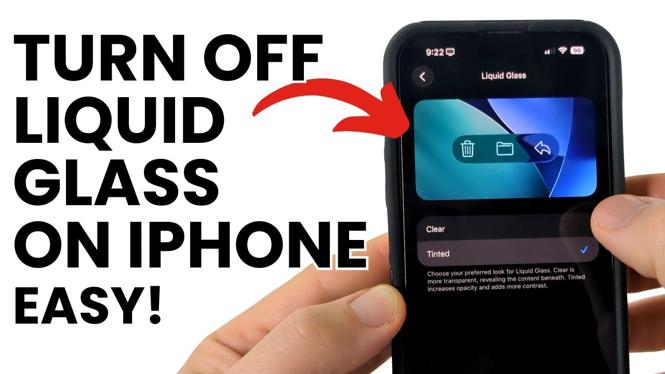
If you’re looking to improve your iPhone’s display by disabling the Liquid Glass feature on iOS 26, you’ve come to the right place. This feature, while designed to enhance the visual appeal of your screen with a glossy effect, can sometimes lead to excessive reflections and compromise readability in certain environments. In this tutorial, we’ll walk you through the steps to turn off Liquid Glass mode, allowing you to restore your iPhone’s display to its traditional appearance, improving usability and comfort.
Video Tutorial
Why You Might Be Looking for This Tutorial
There are several reasons users may wish to disable the Liquid Glass effect on their iPhones:
- Reduced Glare: The glossy screen can cause glare, especially in bright conditions or sunlight. Turning off Liquid Glass can make it easier to see your display.
- Improved Readability: Without the reflective surface, text and images are often more straightforward to read, enhancing your overall user experience.
- Preference for Traditional Display: Some users simply prefer the standard iOS look and feel, finding it more familiar and comfortable.
Steps to Turn OFF Liquid Glass on iPhone iOS 26
- Open Settings: Locate and tap on the Settings app on your iPhone’s home screen.
- Navigate to Display & Brightness: Scroll down and select the ‘Display & Brightness’ option from the list of settings.
- Locate Liquid Glass Option: Within the Display settings, look for the ‘Liquid Glass mode’ feature.
- Toggle OFF the Feature: Once you find the Liquid Glass option, toggle it off to disable the glossy effect.
- Confirm Your Changes: Exit the Settings app and check your display to see the changes take effect.
By following these simple steps, you can easily turn off Liquid Glass mode on your iPhone running iOS 26, allowing you to enjoy a more practical and comfortable display experience. Whether you’re reading, gaming, or browsing, a non-reflective screen can significantly enhance your interaction with the device.
More iPhone Tips & Tutorials:
 Subscribe Now! 🙂

Discover more from Gauging Gadgets
Subscribe to get the latest posts sent to your email.