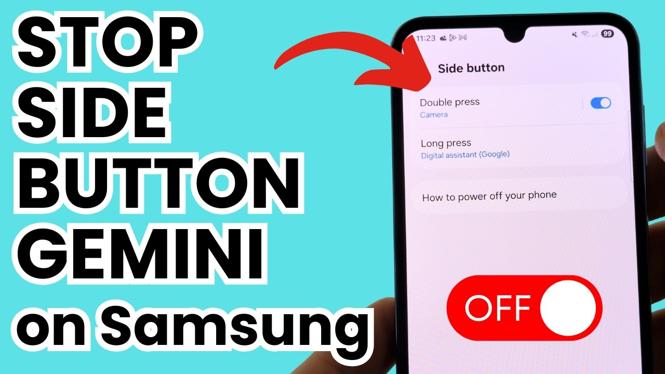
How to Stop Power Button Opening Gemini on Samsung Phone
If you’re a Samsung phone user, you may have noticed that the power button sometimes opens the Gemini application instead of the traditional power menu. This can be frustrating, especially if you frequently need to turn off or restart your device. Luckily, there is a way to disable this feature and regain control over your power button. In this tutorial, we will walk you through the steps to stop the power button from opening Gemini on your Samsung device.
Video Tutorial
Why You Might Be Looking for This Tutorial
Many Samsung users find themselves inadvertently launching the Gemini app when pressing the power button, which can disrupt their workflow and make managing their device annoying. The power button is primarily intended for turning off or restarting your phone, and having it diverted to open an app can be counterproductive. This tutorial is designed for those who wish to restore their phone’s functionality and regain easy access to power options without interference from Gemini.
Steps to Disable Gemini from the Power Button
- Open Settings: Start by unlocking your Samsung phone and accessing the ‘Settings’ app from the app drawer or home screen.
- Go to Advanced Features: Scroll down and tap on ‘Advanced features’ in the Settings menu.
- Select Side Key: Tap on ‘Side key,’ which will show you the current configurations for the power button.
- Change Power Menu Settings: Here, you’ll find options associated with the power button. Make sure it’s set to ‘Power off menu’ instead of ‘Open app.’
- Exit Settings: After making your selection, exit the settings. Test your power button to ensure that it now brings up the power menu as expected.
By following these steps, you can disable the function that opens Gemini via your power button and return to the conventional use of your phone’s power features. This quick adjustment can greatly enhance your experience with your Samsung device, allowing for smoother and more efficient use.
More Samsung Phone Tips & Tutorials:
 Subscribe Now! 🙂

Discover more from Gauging Gadgets
Subscribe to get the latest posts sent to your email.