How to Stop Pop Up Ads on iPhone
Pop-up ads can be a significant annoyance when browsing the internet on your iPhone. Whether you’re trying to read an article, shop online, or simply catch up on news, intrusive pop-ups can interrupt your experience and make it difficult to navigate. Luckily, there are several methods to block pop-up ads across different browsers on your device. In this guide, we will walk you through the steps to disable pop-up ads in Safari, Chrome, and other popular browsers for a smoother and cleaner browsing experience in 2025.
Video Tutorial
Why You Might Be Looking for This Tutorial
Many users search for ways to stop pop-up ads due to the frustrating nature of these interruptions. If you’re tired of constantly closing annoying ads, this tutorial will provide the necessary steps to regain control over your browsing experience. In addition, blocking pop-up ads can enhance your device’s performance, improve loading times, and protect your privacy by reducing exposure to potentially harmful content. Whether you use Safari, Chrome, or another browser, our detailed instructions will ensure you can browse without distraction.
Steps to Stop Pop Up Ads on iPhone
1. Disable Pop-ups in Safari
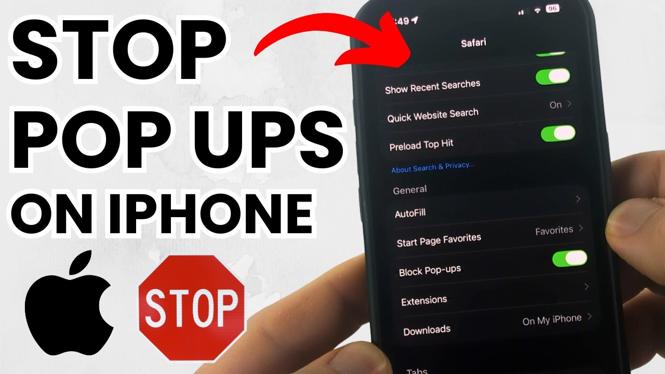
Safari is the default browser on the iPhone, and it includes built-in features for blocking pop-ups. Here’s how to disable them:
- Open the Settings app on your iPhone.
- Scroll down and select Safari.
- Toggle the option for Block Pop-ups to the ON position.
2. Block Pop-ups in Google Chrome
If you prefer using Google Chrome, you can block pop-ups with just a few taps:
- Open the Chrome app on your iPhone.
- Tap the three-dot menu icon in the lower-right corner.
- Go to Settings > Content Settings.
- Select Block Pop-ups and toggle it to the ON position.
3. Use Third-Party Ad Blockers
In addition to the built-in settings, you can consider using third-party ad blockers for a more comprehensive solution. Follow these steps:
- Visit the App Store and search for reputable ad-blocking apps.
- Download and install your preferred app.
- Open the app and follow its setup instructions to integrate it with your browser.
- Make sure to enable the blocker in your browser settings where applicable.
4. Regularly Clear Your Browser Cache
Clearing your cache can help improve performance and eliminate unwanted pop-ups. To do this:
- Open Settings > Safari.
- Tap on Clear History and Website Data.
- Confirm your choice to remove all data.
Conclusion
By following these steps, you can successfully block pop-up ads on your iPhone, allowing for an uninterrupted browsing experience. Whether you’re using Safari, Chrome, or a third-party app, taking control of your online experience is essential. Remember to keep your browsers updated and adjust your settings as needed to enjoy a clean, fast, and more secure browsing environment.
More iPhone Tutorials:
 Subscribe Now! 🙂

Discover more from Gauging Gadgets
Subscribe to get the latest posts sent to your email.