How to Send a Doodle on Instagram
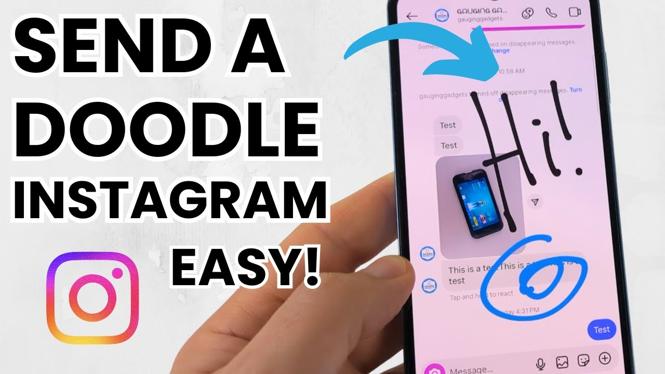
Instagram is not just a platform for sharing photos and videos; it also allows users to express themselves creatively through messaging. One fun and engaging way to communicate on Instagram is by sending doodles in your messages. In this tutorial, we will walk you through the steps of sending a doodle in Instagram messages using the app on various devices, including iPhone, Android, and Samsung. Whether you want to add a personal touch to your conversations or simply have fun drawing, this guide will help you master the art of doodling in Instagram messages.
Video Tutorial
Why You Might Be Looking for This Tutorial
Many users are keen to enhance their Instagram messaging experience and make their conversations more lively and personalized. Doodling in messages allows you to share your creativity, humor, and personality. You might be looking for this tutorial if you:
- Want to learn a new way to communicate with friends and family on Instagram.
- Are interested in adding a unique touch to your messages that goes beyond text and emojis.
- Want to explore Instagram’s features to make your chats more engaging.
- Are looking for a fun activity to do while chatting with loved ones.
Steps to Send a Doodle in Instagram Messages
Sending a doodle on Instagram is a simple process. Follow these easy steps to create and send your own drawings:
- Open the Instagram App: Launch the Instagram app on your device and log in to your account.
- Navigate to Direct Messages: Tap the paper airplane icon in the top right corner of your screen to access your direct messages.
- Select a Conversation: Choose the conversation where you want to send your doodle or start a new message by tapping the “+” icon.
- Open the Drawing Tool: In the message input field, tap on the camera icon or the image icon. Look for the “Draw” option (which may appear as a pencil icon).
- Create Your Doodle: Use your finger or stylus to draw your doodle. You can select different colors and brush sizes to customize your artwork.
- Send Your Doodle: Once you’re satisfied with your doodle, tap the send button (usually represented by an arrow) to share your drawing with the recipient.
Conclusion
Sending a doodle in Instagram messages is a creative way to interact with your friends and enhance your chats. By following the steps outlined in this guide, you can easily express your thoughts and emotions through drawings. So why not give it a try? Unleash your creativity and make your conversations on Instagram more memorable!
Do you have any questions or need further clarification? Leave a comment below, and let us know your thoughts!
More Instagram Tips & Tutorials:
 Subscribe Now! 🙂

Discover more from Gauging Gadgets
Subscribe to get the latest posts sent to your email.