How to Screen Record on Samsung Phones
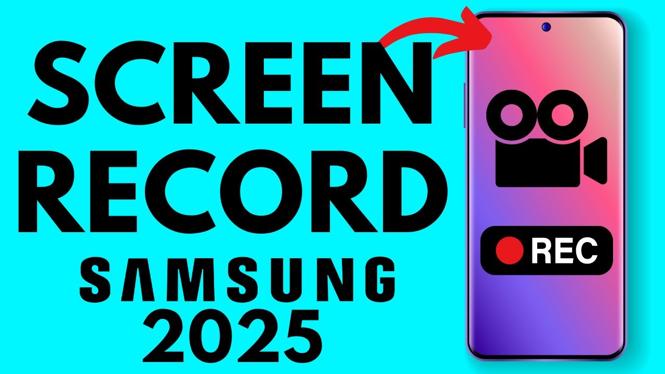
Screen recording is an invaluable tool for anyone looking to document their mobile experiences, whether for creating tutorials, recording gameplay, or troubleshooting issues. If you own a Samsung Galaxy phone, you are in luck! Samsung has integrated a user-friendly screen recording feature within its One UI 6 and newer iterations. This blog post will guide you through the process of screen recording on your Samsung device, ensuring you can capture your screen effortlessly.
Video Tutorial
Why You Might Be Looking for This Tutorial
Many users seek to record their Samsung phone screens for various reasons:
- Tutorial Creation: Educators and content creators can produce helpful tutorials to assist others in navigating applications or settings.
- Gameplay Recording: Gamers can capture their gameplay experiences to share with friends or post online.
- Technical Support: By recording the screen, users can showcase issues to tech support or provide troubleshooting tips.
- Memories and Moments: Capture memorable moments from your apps or games to relive later on.
Steps to Screen Record on Samsung Phones
Now, let’s dive into the steps you need to follow to screen record on your Samsung Galaxy phone.
1. Access the Screen Recorder
Swipe down from the top of the screen to open the notification panel. Look for the ‘Screen Recorder’ icon. If you don’t see it, you may need to tap on the ‘More’ or ‘Edit’ button to add it to your quick settings.
2. Set Up Your Recording Preferences
Once you tap the ‘Screen Recorder’ icon, a menu will appear. Here, you can adjust settings such as:
- Sound: Choose to record with no sound, media sounds, or audio from your microphone.
- Video Quality: Set the resolution of your screen recording to ensure your footage looks great.
3. Start Recording
After setting your preferences, tap the ‘Start’ button. You’ll see a countdown before the recording begins. During this time, you can navigate your Samsung phone as you normally would.
4. Stop Recording
To stop recording, swipe down to access the notification panel and tap the ‘Stop’ button. Alternatively, you can tap the screen recorder icon at the top of the screen, which will also stop the recording.
5. Access Your Recordings
Your screen recordings will typically be saved in the Gallery app under the ‘Screen recordings’ album. You can easily view, edit, or share your recordings from there.
Conclusion
With the built-in screen recording feature on Samsung Galaxy phones, capturing what’s on your screen has never been easier. Whether for educational purposes, entertainment, or troubleshooting, knowing how to screen record is a skill that every Samsung user can benefit from. Follow the steps above, and you’ll be recording your screen in no time!
More ? In this tutorial, you’ll learn how to screen record on Samsung Galaxy phones using the built-in screen recorder available in One UI 6 and newer. We’ll walk you through how to access the screen recording tool, change settings like sound and video quality, and where to find your recordings after you’re done. This means you’ll be able to record your Samsung screen for tutorials, gameplay, or troubleshooting without needing any third-party apps.
 Subscribe Now! 🙂

Discover more from Gauging Gadgets
Subscribe to get the latest posts sent to your email.