How to Install Messenger App on iPhone
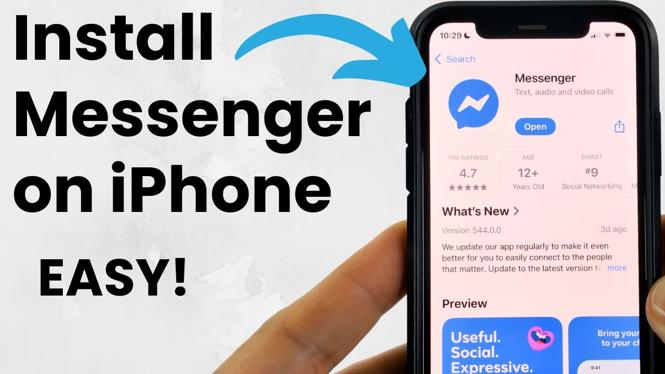
If you are looking to stay connected with your friends and family on your iPhone, downloading the Messenger app is a great way to go. The Messenger app, developed by Facebook, allows you to send text messages, make video calls, and share photos and videos without needing a computer. Whether you are new to smartphones or just need a refresher, this tutorial will guide you through the steps to install the app on your iPhone seamlessly.
Video Tutorial
Why You Might Be Looking for This Tutorial
With the rapid growth of digital communication, staying connected has never been more important. Many people choose the Messenger app because of its user-friendly interface and extensive features. You might be looking for this tutorial if you:
- Are new to iPhones and want to learn how to download apps.
- Have recently switched from Android to iPhone and need to install Messenger.
- Want a quick way to communicate with friends and family using text and video calls.
- Need assistance navigating the App Store.
Steps to Install Messenger App on iPhone
- Unlock your iPhone: Start by unlocking your iPhone to access the home screen.
- Open the App Store: Look for the App Store icon, which is usually a blue icon with a white letter “A,” and tap on it.
- Search for Messenger: Once in the App Store, navigate to the “Search” tab at the bottom of the screen. Type “Messenger” in the search bar and hit search.
- Select Messenger: From the search results, locate the Messenger app which should have the Facebook logo. Tap on it to open the app page.
- Download the App: On the Messenger app page, tap the “Get” button (or the cloud icon with an arrow) to begin the download and installation. You may be prompted to enter your Apple ID password, use Touch ID, or Face ID.
- Open Messenger: After the installation is complete, return to your home screen. You should see the Messenger icon. Tap on it to open the app.
- Sign In: If you already have a Facebook account, you can log in directly with your credentials. If not, you can create a new account within the app.
Now you are ready to use Messenger on your iPhone! Enjoy connecting with your loved ones through texts, video calls, and sharing your moments instantly.
More iPhone Tutorials:
 Subscribe Now! 🙂

Discover more from Gauging Gadgets
Subscribe to get the latest posts sent to your email.