How to Install Google Drive App on iPhone
In today’s digital age, cloud storage has become essential for managing files efficiently. Google Drive is one of the most popular cloud storage options, allowing users to store, share, and access their files anytime, anywhere. If you own an iPhone and want to take advantage of Google Drive’s features, you’re in the right place. This tutorial will guide you through the simple steps to install the Google Drive app on your iPhone and make the most of it.
Why You Might Be Looking for This Tutorial
There are several reasons why you might want to install the Google Drive app on your iPhone:
- Access Files Anywhere: With the Google Drive app, you can access your files stored in the cloud from your iPhone, making it easier to work on the go.
- Easy File Sharing: Google Drive allows for quick sharing options, perfect for collaborative work with colleagues or friends.
- File Management: Organize your documents, photos, and videos effectively, ensuring you always have the right files at your fingertips.
- Seamless Integration: If you use other Google services, the integration with Google Drive makes the user experience more fluid and efficient.
Steps to Install Google Drive App on iPhone
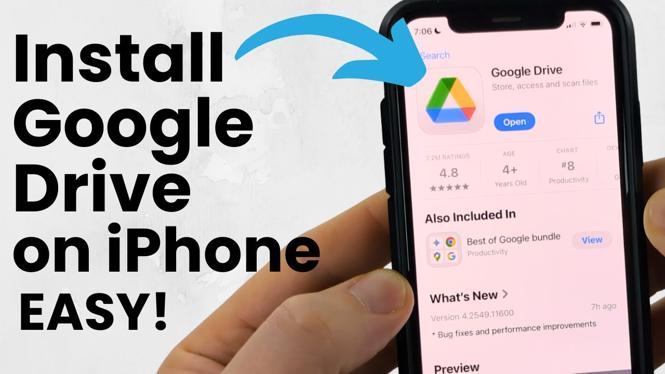
- Open the App Store: Locate the App Store icon on your iPhone’s home screen and tap to open it.
- Search for Google Drive: In the App Store, tap the search bar at the bottom, type “Google Drive,” and press search.
- Select the App: Find the official Google Drive app in the search results. It should have the recognizable Google Drive icon.
- Download the App: Tap the download icon (a cloud with an arrow) next to the app. You may need to enter your Apple ID password or use Face ID/Touch ID to confirm.
- Open Google Drive: Once the app is downloaded, you can open it directly from the App Store or find it on your home screen.
- Sign In or Create an Account: Open the Google Drive app and sign in with your Google account. If you don’t have an account, you can create one within the app.
- Manage Your Files: Start uploading, managing, and sharing files easily from your device. The interface is user-friendly and intuitive, allowing for quick navigation between folders and files.
Video Tutorial
By following these steps, you can easily install the Google Drive app on your iPhone and enhance your file management on the go. With its robust features for uploading, managing, and sharing documents, Google Drive is an invaluable tool for anyone looking to streamline their workflow on a mobile device. Start utilizing Google Drive today and experience the convenience it offers.
More iPhone Tutorials:
 Subscribe Now! 🙂

Discover more from Gauging Gadgets
Subscribe to get the latest posts sent to your email.