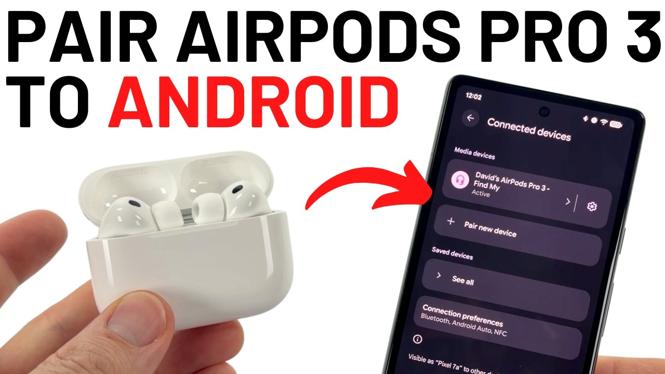
How to Connect AirPods Pro 3 to Any Android Phone
With the rise of wireless audio technology, many users now own multiple devices. If you are an Android phone user who has recently purchased the AirPods Pro 3, you may be wondering how to connect them seamlessly to your device. The good news is that connecting AirPods Pro 3 to any Android phone is straightforward and can enhance your listening experience for music, podcasts, and phone calls.
Video Tutorial
Why You Might Be Looking for This Tutorial
This tutorial is ideal for anyone who owns AirPods Pro 3 and wants to use them with an Android phone. Whether you are switching from an iPhone to an Android device or simply want to enjoy the advanced features of the AirPods Pro 3 on your Android phone, this guide provides clear instructions on pairing your devices. By following the steps outlined below, you will be able to enjoy high-quality audio for music, podcasts, and phone calls, enhancing your overall user experience.
Steps to Connect AirPods Pro 3 to Your Android Phone
Step 1: Prepare Your AirPods Pro 3
First, ensure that your AirPods Pro 3 are charged. Open the charging case and keep the AirPods inside while you prepare to connect them to your Android phone.
Step 2: Enable Bluetooth on Your Android Phone
Navigate to the ‘Settings’ app on your Android device. From ‘Settings,’ select ‘Connections’ or ‘Bluetooth.’ Ensure that Bluetooth is turned on. Your phone will begin searching for available devices.
Step 3: Put AirPods in Pairing Mode
To enable pairing mode, press and hold the button on the back of the AirPods Pro 3 case until the status light starts flashing white. This indicates that your AirPods are ready to pair with a new device.
Step 4: Pair Your AirPods Pro 3 with Your Android Phone
On your Android phone, look for ‘AirPods Pro’ in the list of available Bluetooth devices. Tap on it to initiate the pairing process. After a few seconds, they should connect successfully.
Step 5: Confirm the Connection
Once connected, you will receive a notification on your Android phone indicating that the AirPods Pro 3 are now paired. You can start using them for phone calls, listening to music, or watching videos.
Troubleshooting Tips
If you encounter issues while connecting your AirPods Pro 3, try the following:
- Make sure your AirPods are charged and in pairing mode.
- Restart your Android phone and try the pairing process again.
- Forget the device from Bluetooth settings and reconnect.
Conclusion
Connecting your AirPods Pro 3 to an Android phone does not need to be complicated. By following the steps outlined in this guide, you can enjoy the benefits of your AirPods while using your Android device. If you have any further questions or need additional assistance, feel free to leave a comment below.
More Android Tips & Tutorials:
 Subscribe Now! 🙂

Discover more from Gauging Gadgets
Subscribe to get the latest posts sent to your email.