How To Download Valorant For FREE On PC or Laptop
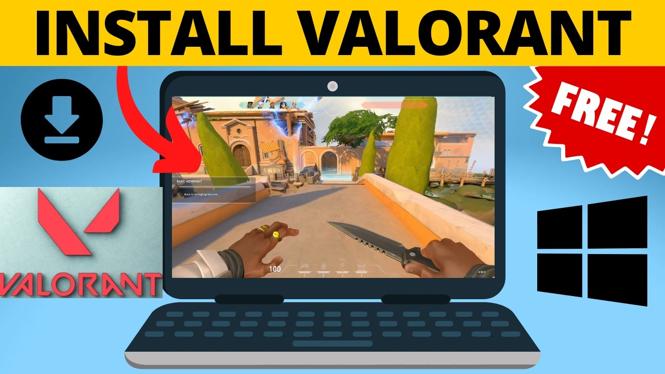
Valorant is one of the most popular first-person shooter (FPS) games available today, combining tactical gameplay with character abilities to create an immersive gaming experience. If you’re looking for a way to download Valorant for free on your PC or laptop, you’re in the right place. In this guide, we will walk you through the step-by-step process of downloading and installing Valorant via the official Riot Games client, allowing you to jump into the action without spending a dime.
Why You Might Be Looking for This Tutorial
As gaming becomes more accessible and popular, many gamers are constantly searching for new and exciting titles that won’t break the bank. Valorant is a fantastic choice due to its free-to-play model, diverse characters, and competitive gameplay. However, the downloading process can be confusing for new users or those unfamiliar with the Riot Games platform. This tutorial provides clear and concise instructions to ensure you can download and install Valorant quickly and easily, allowing you to dive into the game as soon as possible.
Video Tutorial
Step-by-Step Guide to Download Valorant
Step 1: Visit the Riot Games Website
Begin by navigating to the official Riot Games website. Here, you can find all the information you need about Valorant along with the download link.
Step 2: Create a Riot Games Account
If you don’t already have a Riot Games account, you’ll need to create one. Click on the “Play Free” button on the Valorant page and follow the prompts to set up your account. Make sure to verify your email address to complete the registration process.
Step 3: Download the Riot Client
Once you have created your account, you will be prompted to download the Riot client. Click on the download button, and the installer will start downloading to your computer.
Step 4: Install the Riot Client
After the download is complete, locate the installer file (usually found in your Downloads folder) and double-click it to initiate the installation. Follow the installation prompts to set up the Riot client on your PC or laptop.
Step 5: Launch the Riot Client and Sign In
Once the installation is complete, launch the Riot client. Sign in using the account you created in Step 2. If you have any issues logging in, double-check your credentials to ensure they are correct.
Step 6: Download Valorant
After signing in, locate Valorant in the Riot client. Click on the game’s icon, and then select the option to download or install it. The download process may take some time, depending on your internet connection speed.
Step 7: Start Playing Valorant
Once Valorant is downloaded and installed, you can click the play button within the client to launch the game. You’re now ready to enjoy tactical firefights and strategic gameplay in Valorant. Don’t forget to check out tutorials and guides to enhance your skills!
Conclusion
Downloading Valorant for free on your PC or laptop is a straightforward process if you follow the steps outlined above. With this popular FPS game at your fingertips, you can enjoy hours of competitive gaming and engage with a vibrant community. Happy gaming!
More Windows 11 Tips & Tutorials:
 Subscribe Now! 🙂

Discover more from Gauging Gadgets
Subscribe to get the latest posts sent to your email.